Ticket Transfers
IN THIS ARTICLE
How Ticket Transfers Work
Setting Up Transferable Tickets
How Purchasers Transfer Tickets
Digital Comp Ticket Setup
Issuing Digital Comp Tickets
Reporting on Comp Tickets
RELATED ARTICLES
Ticket Transfers allow ticket holders to send individual tickets from their order to other recipients while maintaining digital delivery and preserving reporting visibility. This is particularly useful for sponsors, radio stations, corporate partners, and other organizations that need to distribute tickets to multiple people.
How Ticket Transfers Work
When a ticket is assigned to a transferable price type, the ticket holder can transfer some or all of their tickets to other recipients directly from their ticket account.
When transferred, the original scannable code is deactivated, and a new scannable ticket code is created, ensuring that you don't have duplicate tickets in your system. You can still look up the order using the original code via the Code Lookup tool if necessary, the code will simply show as deactivated.
The transfer process allows organizations to receive a group of tickets in a single order and then distribute individual tickets to end users without requiring your staff to manage each recipient separately.
Common use cases include:
- Individuals purchasing for a group
- Sponsor ticket allocations
- Employee ticket distribution
- Contest winners
- Comp ticket distribution
- Radio station ticket giveaways
- VIP guest lists
Setting Up Transferable Tickets
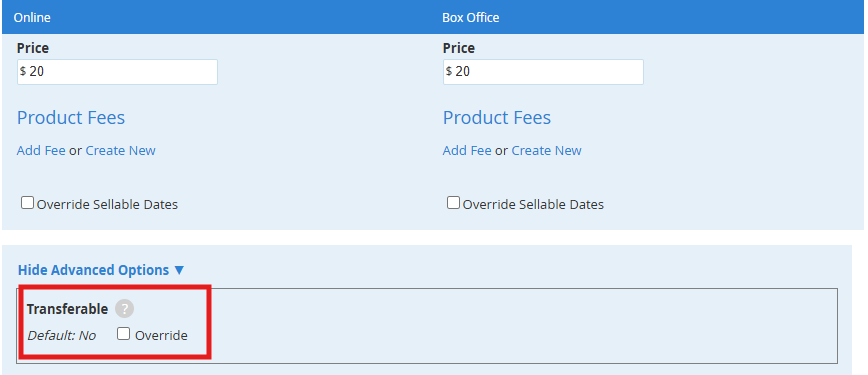
Ticket transfers are controlled at the Price Type level.
To allow tickets to be transferred:
- Edit the desired Price Type.
- Open Advanced Options.
- Enable the Transferable setting.
- Save your changes.
Because transferability is configured per price type, you can choose which tickets can be transferred and which cannot.
How Purchasers Transfer Tickets
Recipients can transfer tickets directly from their ticket account.
- The recipient receives an email containing an Access Tickets link.
-
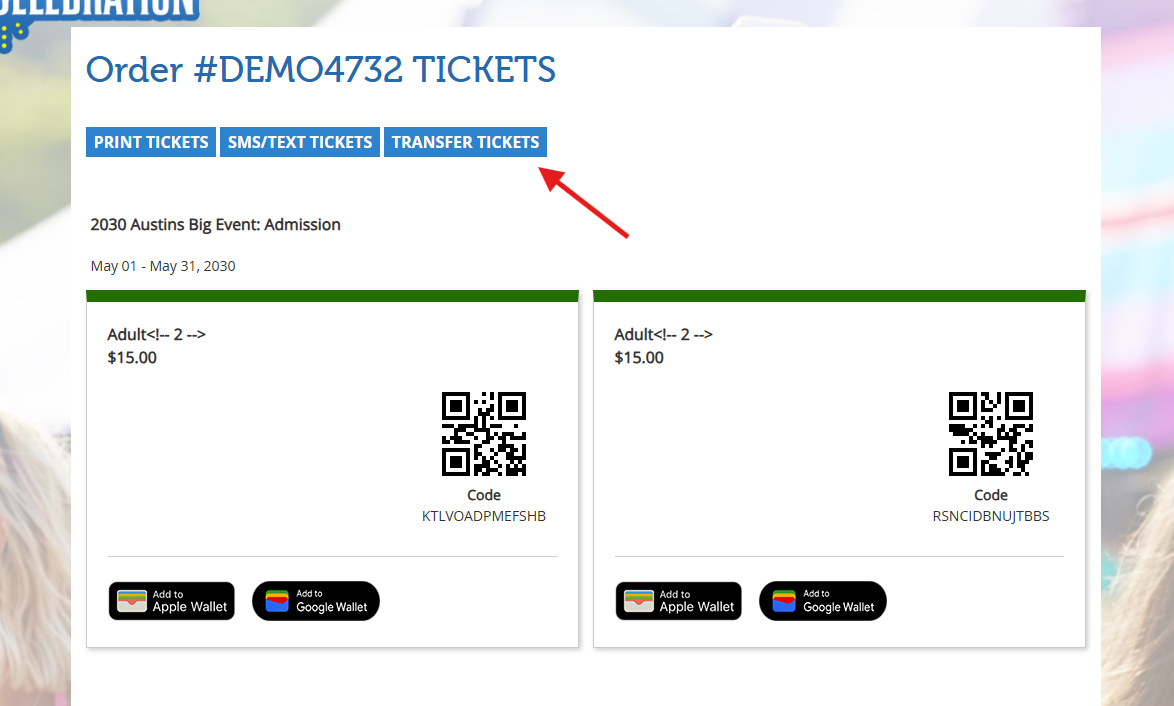
After accessing their tickets, they click Transfer Tickets.
-
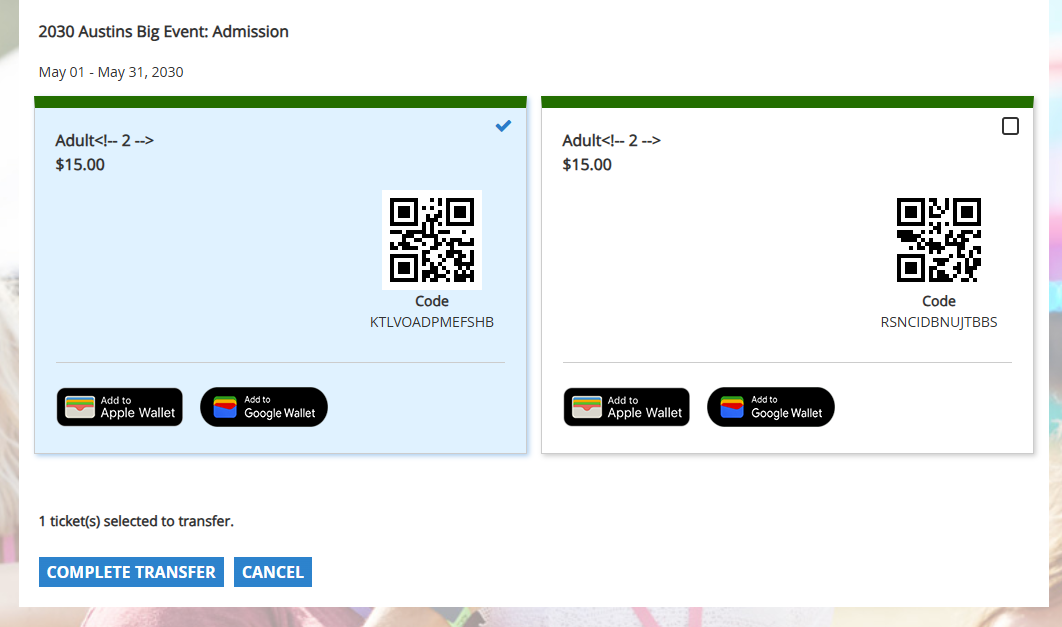
Checkboxes appear next to each ticket, allowing the recipient to select the specific tickets they want to transfer.
-
After selecting the tickets, they click Complete Transfer and enter the new ticket holder's information.
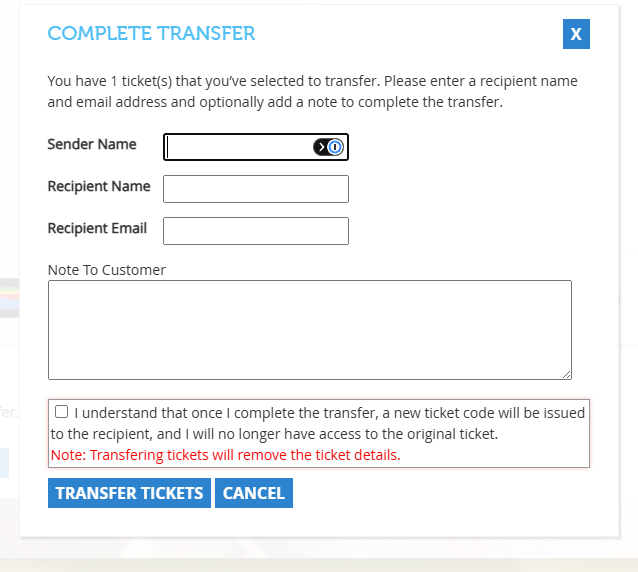
- Once submitted, the selected tickets are transferred to the new recipient. These will arrive by email to the new recipients with an Access Tickets link.
- Tickets can be further transferred by the new recipients if needed.
Digital Comp Ticket Setup
Ticket Transfers can be particularly useful when distributing complimentary tickets through sponsors, radio stations, or other organizations.
Instead of issuing tickets to every individual group, you can send a block of tickets to a single contact and allow them to distribute the tickets themselves.
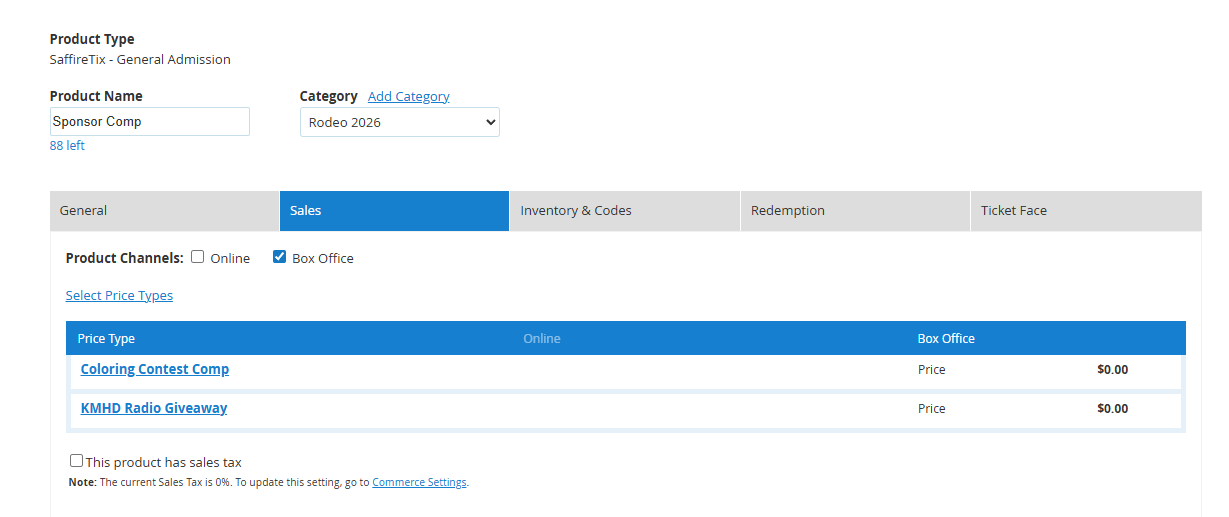
For the best reporting visibility, create:
- A dedicated comp product
- A unique comp price type for each sponsor or giveaway group
Enable the Transferable setting on any comp price types that should allow redistribution.
Issuing Digital Comp Tickets
Using Web Box Office:
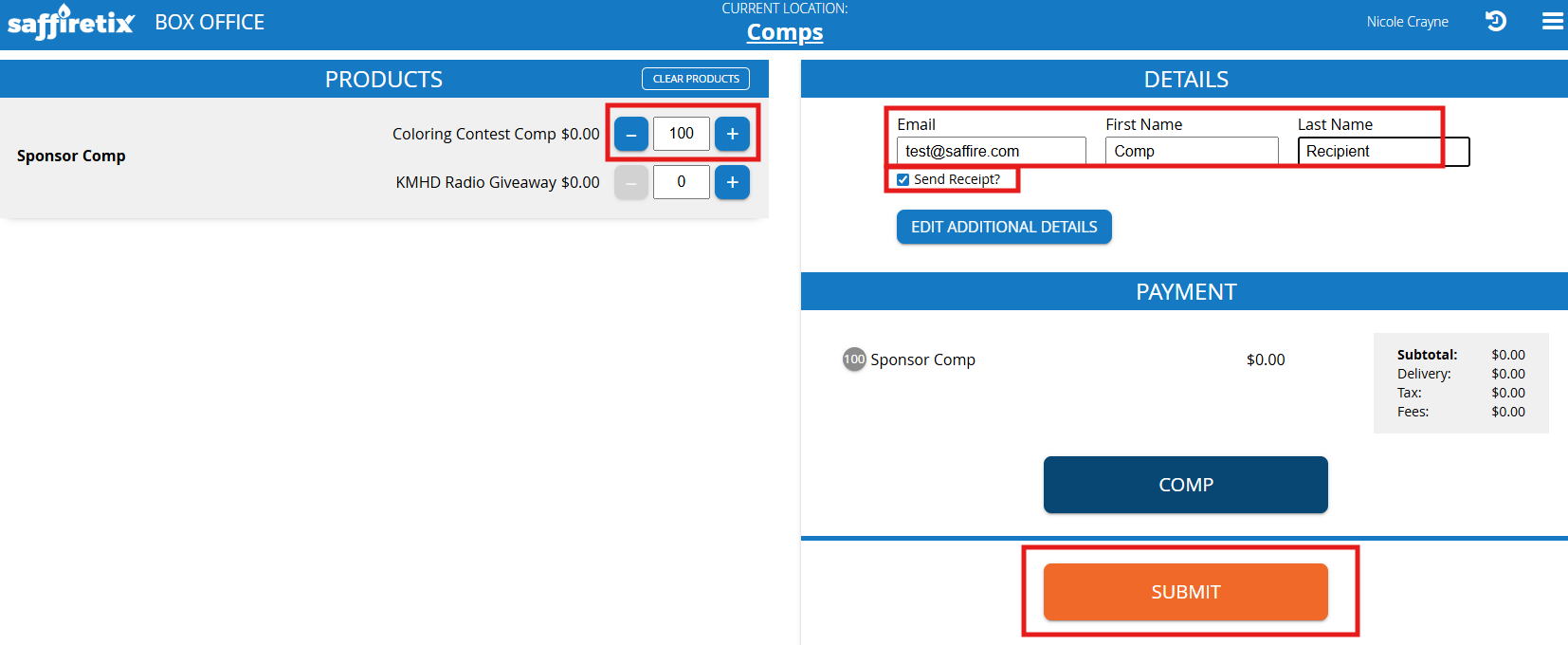
- Select the comp product.
- Add the desired comp price type tickets.
- Process the order as a $0 comp.
- Enter the recipient's email address to have the tickets automatically sent by email when the order is complete.
The recipient receives digital tickets just like a normal online purchase and can transfer individual tickets to winners, employees, or guests.
Be sure to enter the recipients email address during checkout. If you miss this step, you can email the receipt again in Spark to make digital tickets accessible to the recipient.
Reporting on Comp Ticket Usage
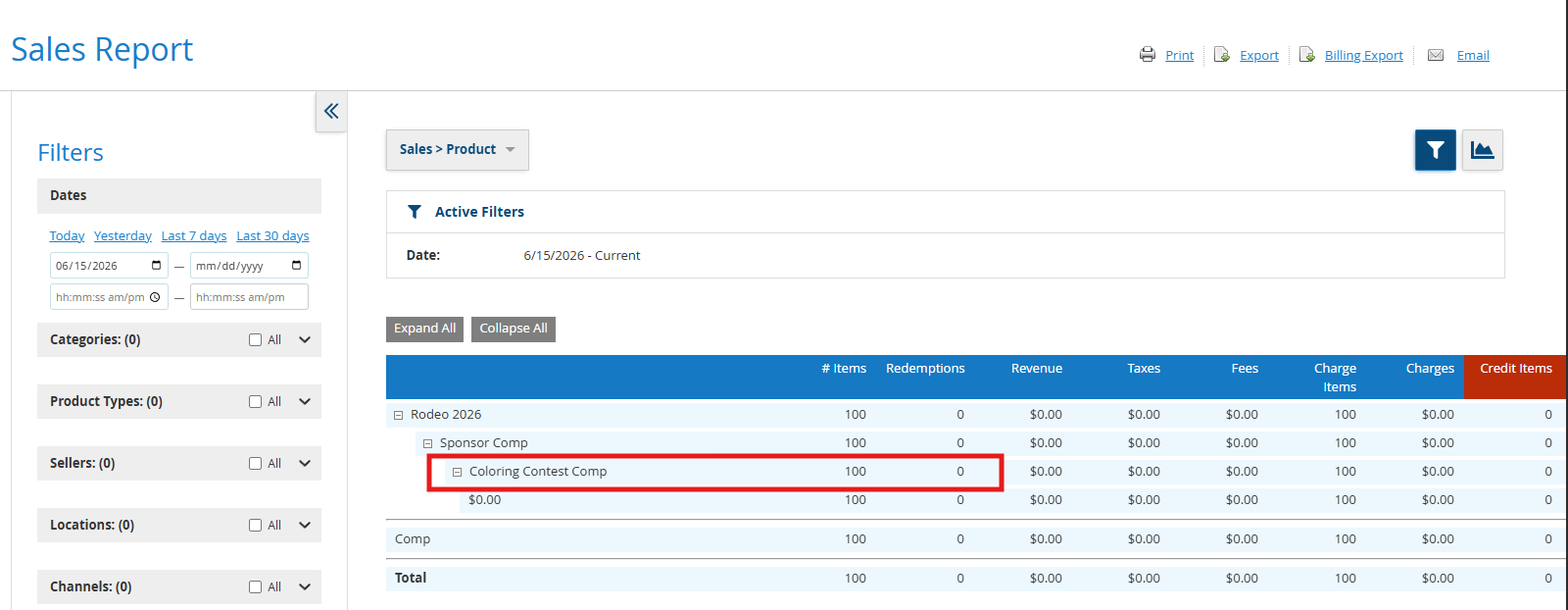
If each sponsor or giveaway group has its own price type, reporting on usage of comp tickets can be tracked in the Sales Report rather than by using pre-printed batches.
The Sales Report allows you to view:
- Total tickets issued under Items
- Total tickets redeemed under Redemptions
Expanding the comp product shows all associated comp price types, making it easy to compare tickets distributed versus tickets scanned for each sponsor or giveaway group.