
8.4 Release Notes
IN THIS ARTICLE
As always, we encourage you to read the notes below and try out the new features for yourself. Please reach out via support@saffire.com if you have any questions!
Sparky AI
Location: Business Pages, Event Pages, Tickets & Deals Page, all Dynamic Pages
You've seen Sparky, our handy AI buddy, in the bottom right corner or Spark for a while. Sparky is always ready to answer your questions and assist you with information anytime you need. Sparky now is being brought into your Event Pages, Business Pages, and all of your site's Dynamic Pages.
Better than ever, Sparky can help you create content or serve as your SEO expert.
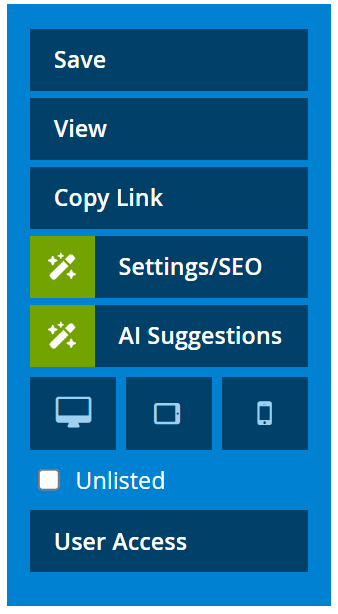
Anywhere you see the green 'magic wand' icon or Sparky, you'll be able to utilize AI to assist you.


Note: AI-generated suggestions may not be fully accurate or suitable. Please review and edit as needed. Saffire is not responsible for published content.
Sparky AI SEO Suggestions and Page Settings
Search Engine Optimization (SEO) tools are already built into your Saffire website. These tools can improve how easily your site appears in search engine results, such as Google. By optimizing key parts of your site, SEO makes it easier for your customers to find your organization, as the official/authorized website, online and increases visibility for your events and/or business.
Instructions:
With this new feature, you don't have to be an SEO expert to generate impactful keywords, descriptions, or even the SEO title for each page. You can simply:
- Enter your page content as you have been doing
- Save any pending changes on the page
- Click on Settings/SEO on the Tool bar on the right of the screen
- Then click Generate
- Choose which fields you wish to Apply
- *REVIEW and/or MODIFY the results
- *Providing a thumbs up or thumbs down will help us understand if you find this tool useful
*Optional step(s)


Hint: This is a great time to audit your existing pages and just generate some SEO to help your site rank higher when your customers are searching the web for your event.
Sparky AI: AI Suggestions for Page Content or Social Content
From the same Tools pop out on the right side of your page editor, you'll see the new 'AI Suggestions' button. This will open up an new panel on the page. Sparky will automatically review your page content to make some suggestions for page content and social media marketing material.
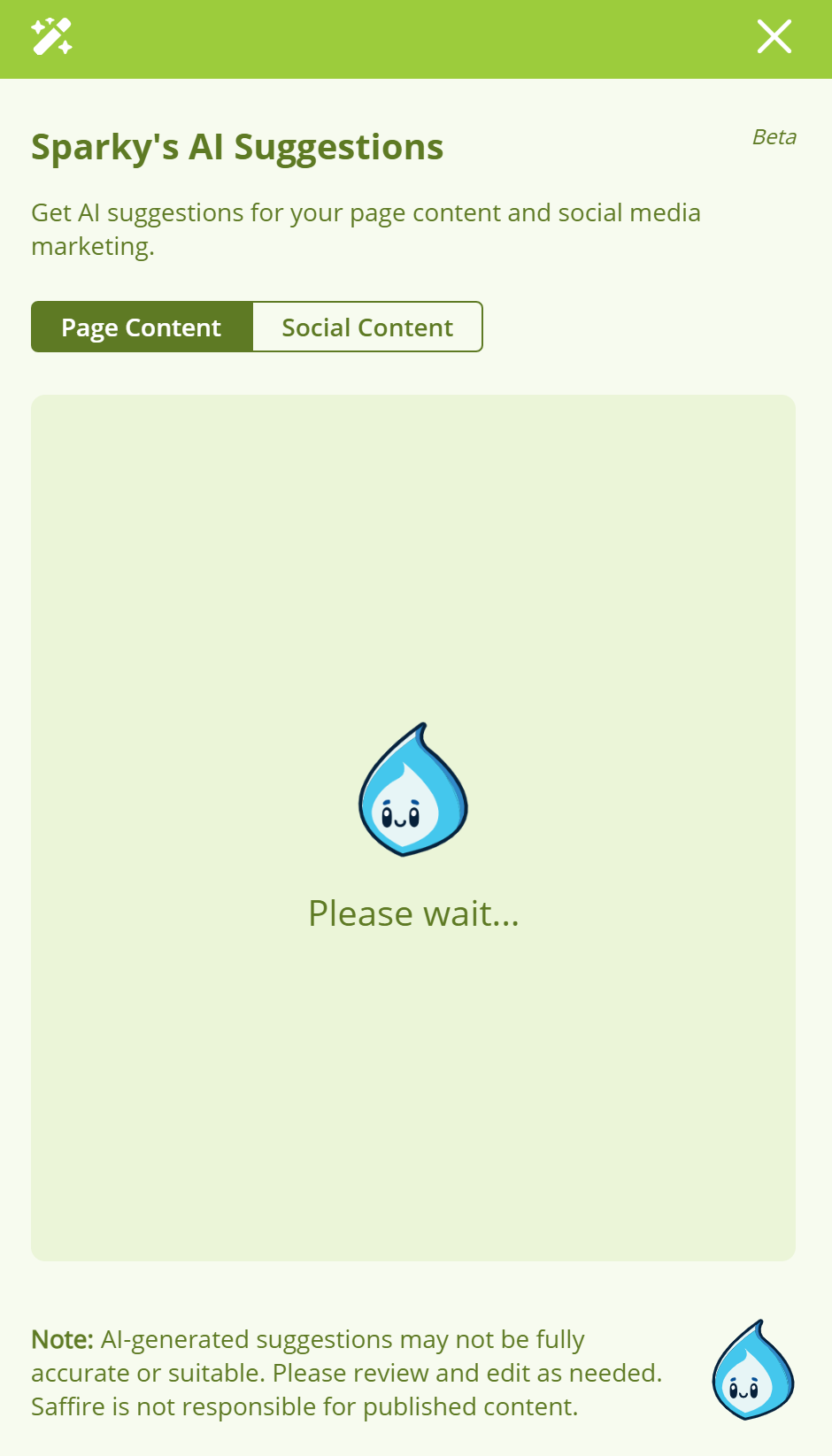
Once generated, the content can be copied in either HTML or Raw Text format to be placed in a TEXT/GALLERY MODULE on the page or the Suggested Email Content can be shared with your email marketing tools for easy modification and edits.


We encourage you to let us know if you find Sparky's suggestions to be useful and helpful. You can let us know if there are any problems by voting "thumbs up" or "thumbs down" for all types of suggestions that Sparky provides. Additionally, we would love to hear from you if you have questions or just want to rave about your newest AI buddy, Sparky!
Note: AI-generated suggestions may not be fully accurate or suitable. Please review and edit as needed. Saffire is not responsible for published content.
Regenerate or Retry Results
If you get a result from Sparky that is completely wrong or you just want to Retry on the page for new results, you have the option to 'Generate' from the SEO Settings popup or 'Retry' from the AI Suggestions panel.
At this time, there is a limit of 5 retries for each single page, per 24 hours. If you feel like you struggle with this limit, please let us know what challenges you are having and we can see how we may be able to assist you with Sparky by emailing us at support@saffire.com or using the chat on the bottom right of the page.
Modifying the Content generating from Sparky
We strongly encourage you review and/or edit any AI-generated content as needed before publishing it to your page. If you have Sparky generate content from a blank page, he'll do his best job to understand your goal, however if he's not providing correct or relevant content, you can help him along by including a Text/Gallery Module on the page with a short description of the event and bullets you think are noteworthy for Sparky to include in his content.
If you like Sparky's information, but just need to add a word or two before you Save Changes to the page, you can modify anything when it's moved over to a Text/Gallery Module on the page.
New Module: HTML/Code editor
With this new module type, you can now include custom blocks of code on any of your dynamic pages. This module will allow you to further customize your web pages.

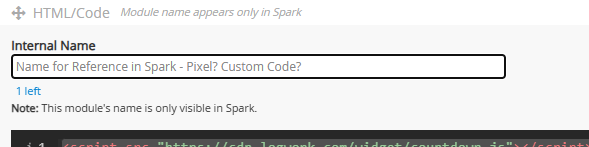
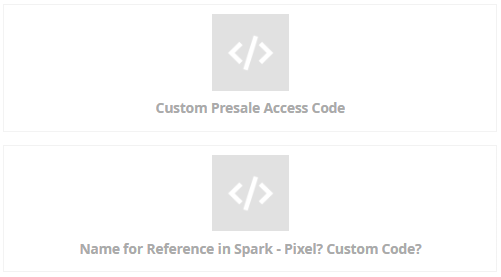
In addition to the code input field, you can also provide an internal name for the module. This name will appear on the Spark page editor but will never be shared with your customers using the website. This internal name allows you to identify what is included in the module for quick reference.
Other Improvements
- Homepage Feature Countdown
- We have modified the countdown labels for improved clarity
- Product Advanced Settings
- "This product is not discountable" setting is now always visible in the advanced settings for products on the Sales Tab, regardless of if there are any active Discounts available on your site.
- "Invoice" Payment Type
- This payment type is now active by default on your site, you can modify the locations it's available by going to Commerce > SaffireTix > Payment Types and Editing the type