
8.3 Release Notes
IN THIS ARTICLE
Cart Abandonment Emails
Admins & Users List
SaffireTix Auto/Continuous Scan
Other Improvements
We encourage you to carefully review the notes provided below and take the time to explore the new features at your own pace. It's important to familiarize yourself with the latest updates, so don't hesitate to reach out via support@saffire.com if you have any questions or need further clarification!
Cart Abandonment Emails (ENHANCEMENT)
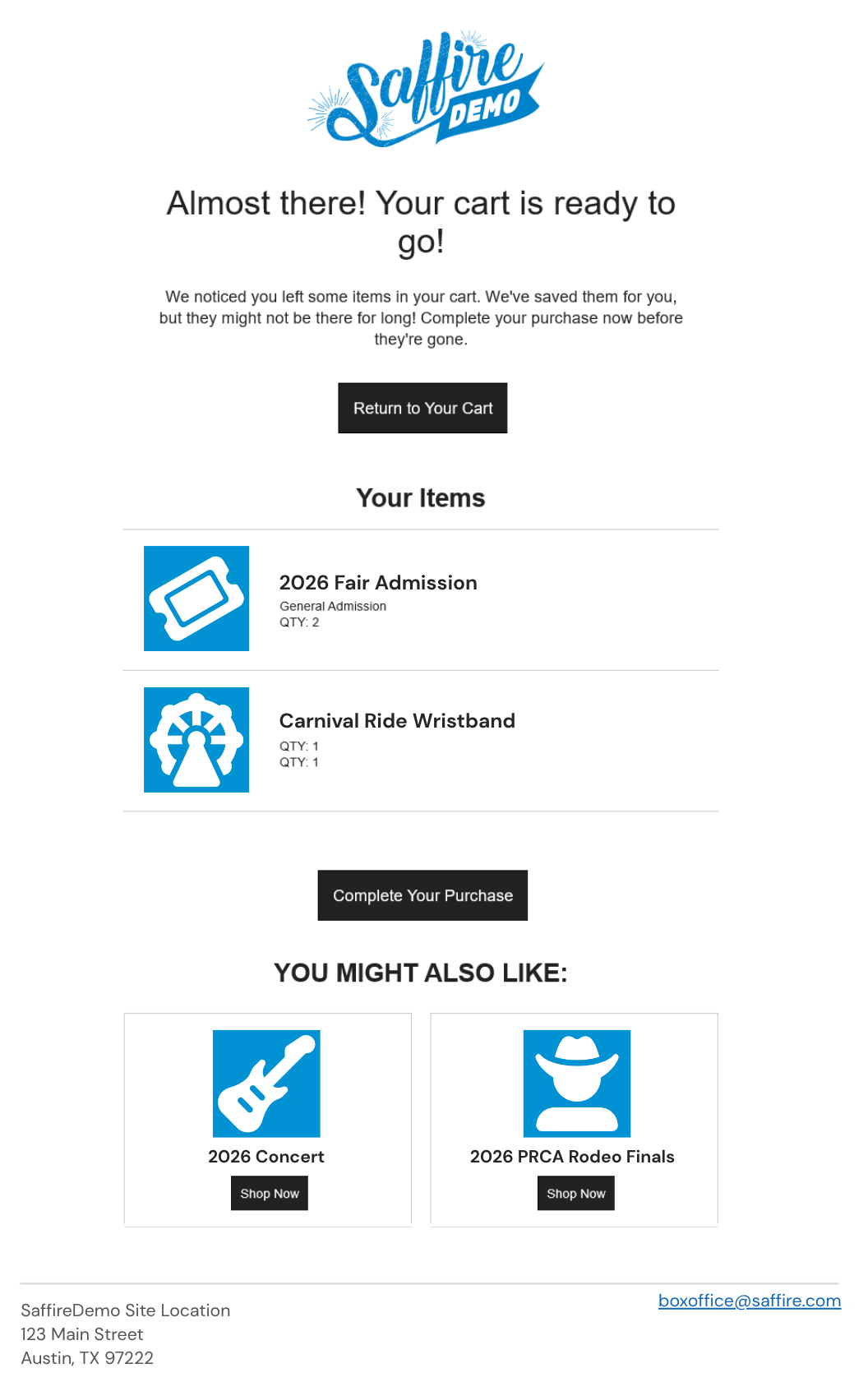
We have overhauled the look and feel for this feature. While we previously had a way for you to send out a cart abandonment email automatically through spark to encourage your customer to complete their transaction, the old email didn't have a custom look or feel to it. It was simply text stating that you haven't completed your purchase and a hyperlink to finish that process. This ENHANCEMENT now has a branded look and feel to it that encourages your customer to interact.
This email now includes:
- Your site logo
- Buttons to restore the customer cart (using your site's styling)
- Callout to the customer of exactly which products are in their cart.
- including Product Image if it's configured to display one
- NEW section that includes Upsell/Cross-selling products ("You may also like")
|
OLD Cart Abandonment Email |
NEW Cart Abandonment Email |
|
|
|
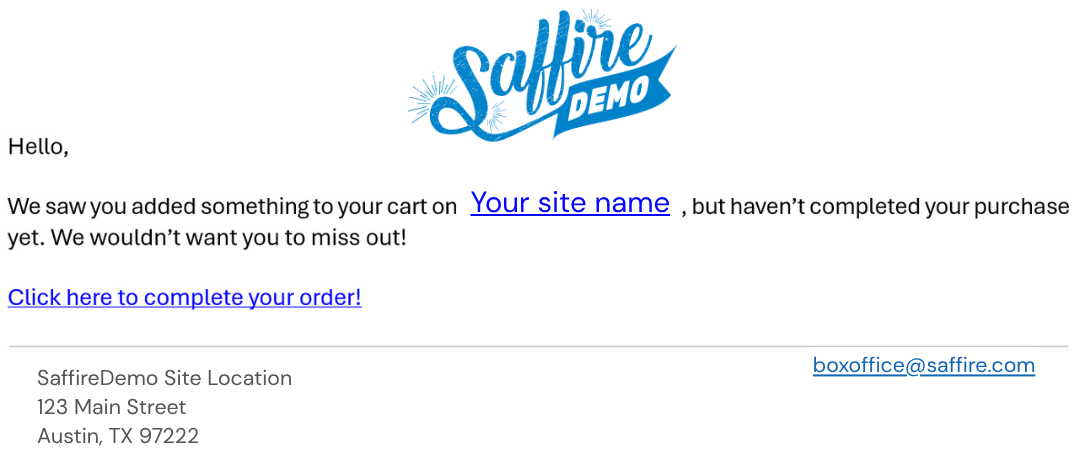
NOTE: Cart abandonment emails are ONLY sent to customers that have completed the first step of entering their email addresses of the checkout cart. If they haven't made it to the Review page, then no email will automatically be sent.
TOOLS > USERS: Default to Admin
Spark Location: Tools > Users
The Users page now loads with the filter preset to Admins. Landing on these accounts on first load and requiring a dropdown switch to view Customers or SaffireTix Users, we hope to eliminate the common “Why do all these people have access?” confusion.
Don't worry, all of you customer accounts are still accessible and you can easily manage your SaffireTix users by simply going to the dropdown on the top of the page:

SaffireTix App: Auto/Continuous Scan Feature
Spark Location: Commerce > SaffireTix > Locations
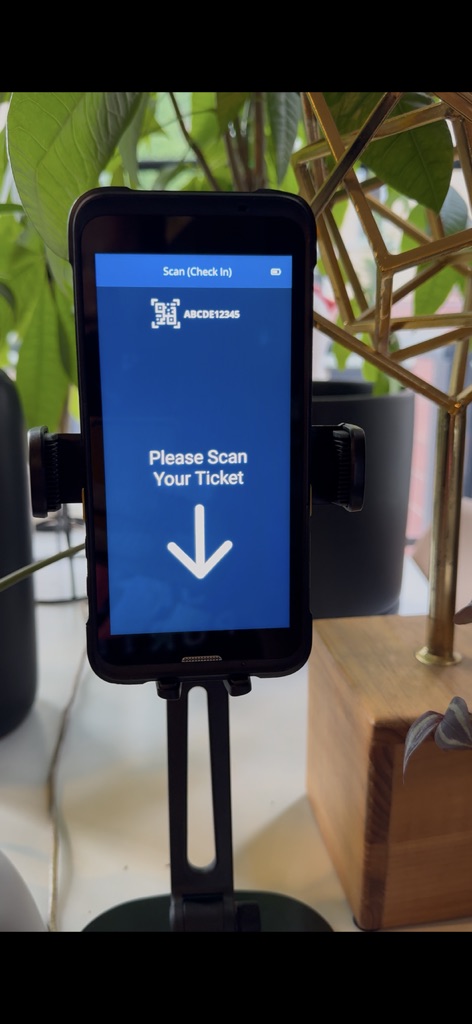
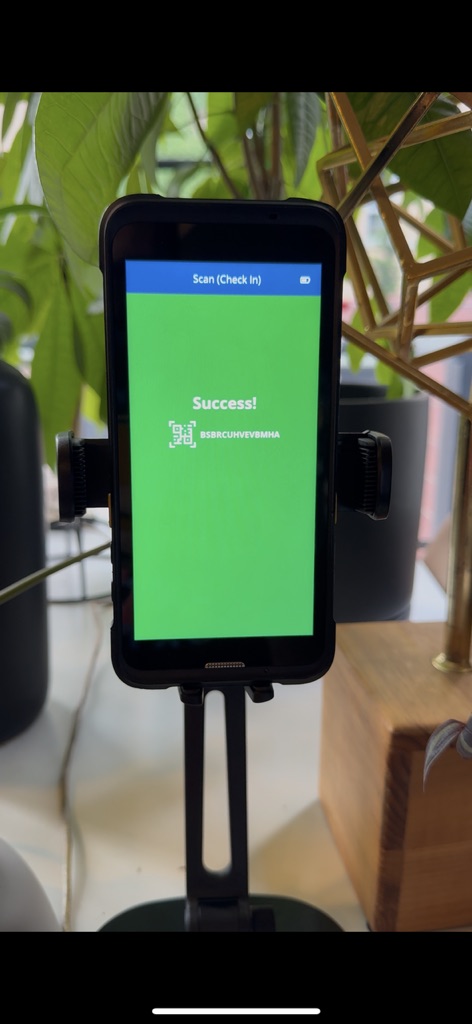
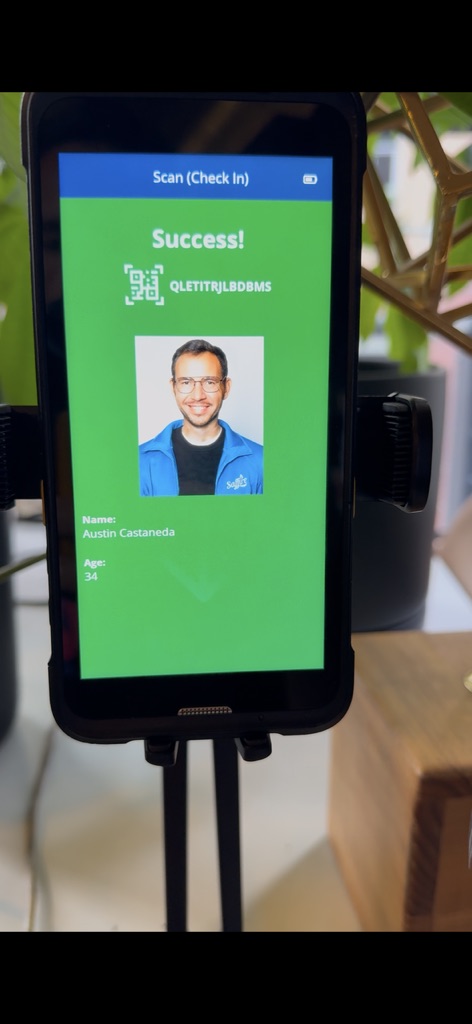
We have launched a new mode within the SaffireTix app. This new mode allows you to have a single staff member watching over several entry points by allowing the devices to be visible to your customers in an Auto Scan or Self Scan layout.
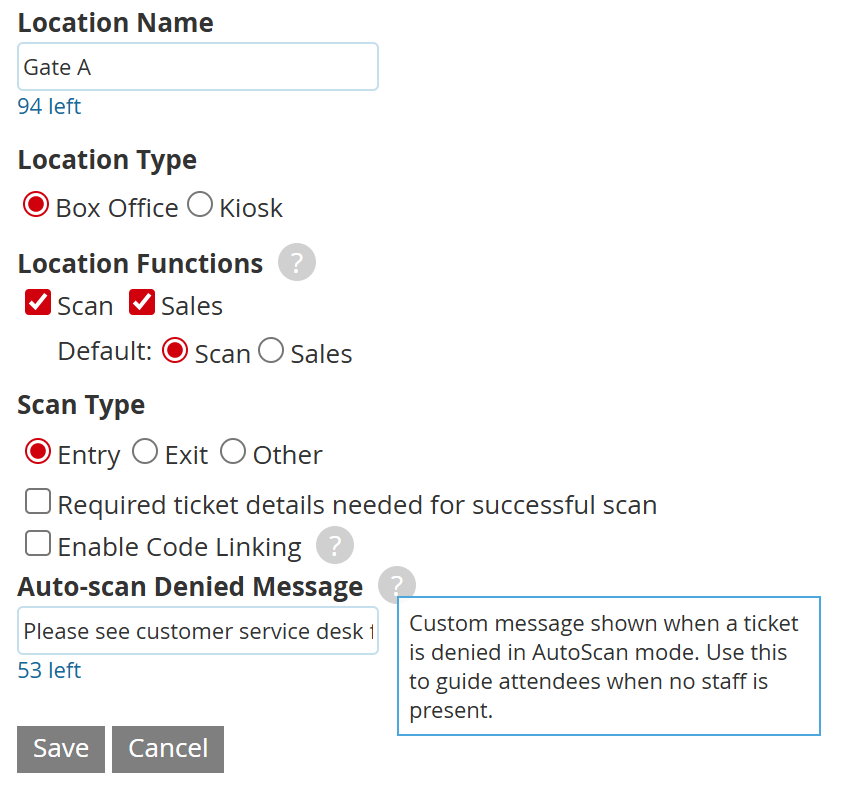
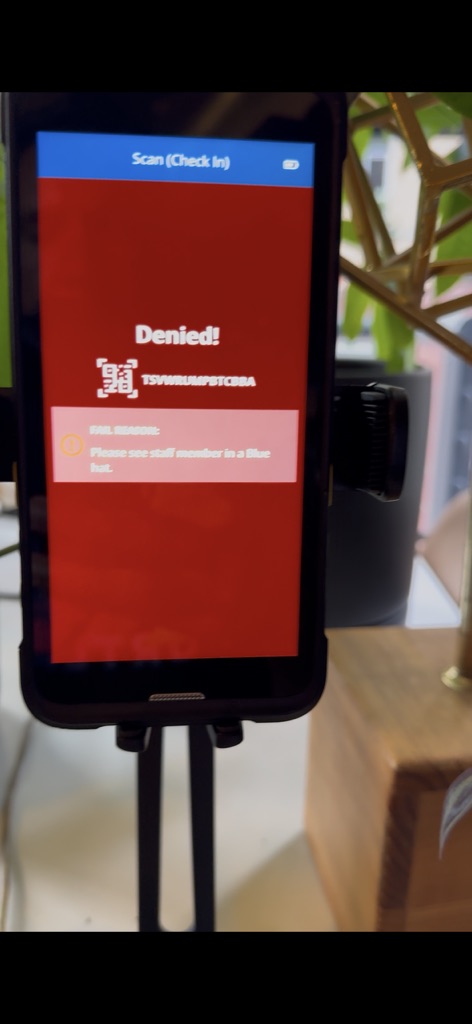
When in this mode, the navigation buttons on the bottom of the app disappear and the Scan screen takes over the full screen. The SUCCESS & DENY message is displayed on the full screen and you are able to provide a custom message to your customers for the denied screens. Some examples of deny messages may be:
- "Please see customer service desk for assistance"
- "Wait for volunteer staff wearing a blue hat"
- "Staff will be with you shortly to assist"
This custom message per location can be configured in Spark. Go to Commerce > SaffireTix > Locations, edit a location and then you will edit the Auto-Scan Denied Message
|
|
|
|
|
Other Improvements
- WCAG (ADA) Compliance Enhancements
- We’ve upgraded key interface components to meet WCAG 2.1 AA standards: improved color-contrast ratios, clearer focus indicators, consistent ARIA landmarks, and full keyboard-navigation coverage across interactive elements. These changes strengthen ADA compliance and deliver a more inclusive, accessible experience for all users.
- EMV Receipt Detail Enhancements
- These additions satisfy the latest card-brand requirements while giving you instant access to the information needed to contest chargebacks, and provide customers with a clearer transaction record.
- Receipts now include the full slate of EMV-mandated data alongside the familiar fields:
- transaction date/time
- $ amount
- masked card number (last 4 digits)
- authorization code
- entry method (CHIP / SWIPE / CONTACTLESS)
- AID (Application Identifier)
- TVR (Terminal Verification Results)
- TSI (Transaction Status Information)
- ...and more