
Star Hip Printer Troubleshooting
IN THIS ARTICLE
Device Not Printing Correctly/At All
Connectivity Issues
Not Connecting to Server
Disabling Ticket Printing
SaffireTix App Not Installed
RELATED ARTICLES
The wireless Hip Printer is ideal for quick sales. It instantly connects to your SaffireTix Mobile Device via Bluetooth technology and allows you to print a ticket or receipt quickly and easily, from anywhere!
If you do not find the information you are looking for in this article, please use the orange "Help" button on the bottom right corner of the page to use our Chat, email us at support@saffire.com, or call 512-430-1123.
Device Not Printing Correctly/At All
- Try restarting the printer by pressing and holding the power button. (T-300 model flashes between the power/error lights for a few seconds before the printer turns on.)
- Make sure that the receipt paper is loaded into the printer correctly per the User Guide.
- If the print is running off the edges of the paper, a setting may need to be adjusted by the Saffire Support team. Reach out to us via the orange Help button below.
Connectivity issues
Hip Printers cannot be connected to laptops via Bluetooth. They can only connect to iPads, iPhones, Zebras, and Chainways via Bluetooth
- Toggle the Bluetooth button on the cellular device and make sure the Bluetooth option is enabled for the SaffireTix App.
- Check the Bluetooth settings of the device to make sure you are connected to the printer there before connecting through the SaffireTix app (Andoid only, not necessary on iPhones)
- When reconnecting the printer to the device, try to do so away from other printers so you know you are connecting to the right one.
- Reset the printer.
QR Code at Far Left
If the QR code on your printed receipt is appearing at the far left of the paper, the SaffireTix logo branded receipt paper may cause the QR code to not scan successfully. If you are seeing this, it may be necessary to change a setting on your hip printer to adjust the code placement. This should only occur on the Star T3001 model printer as seen below:
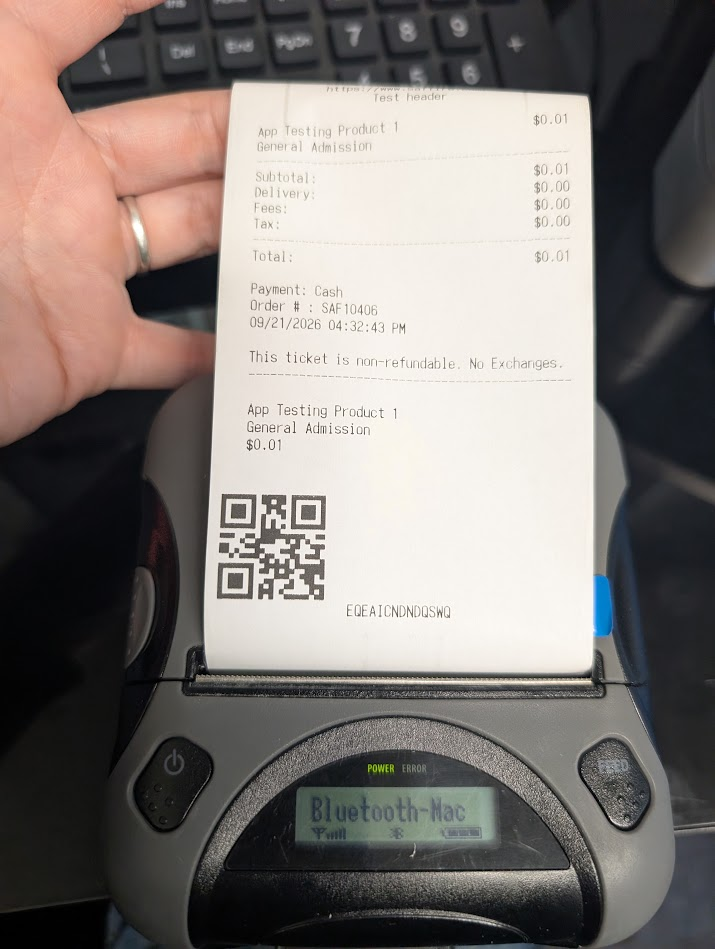
To diagnose, first run a print test to see the current emulation mode:
- Turn the printer off.
- Hold FEED and POWER together and turn it on.
- Release when printing starts, about 5 seconds.
- Check the printed receipt for
Emulation : ESC/POS.
If you see the emulation mode ESC/POS, you will need to follow these steps to switch to emulation mode StarPRNT:
- Turn the printer on and open the printer cover. The cover has to be open. With it closed the same buttons open a different settings mode.
- Hold POWER and FEED together.
- Release as soon as the ERROR lamp finishes its 5th flash. Do not keep holding past it, that changes other settings instead.
- Load paper and close the cover. It prints
EMU = ESC/POSorEMU = StarPRNT. - Reboot the printer. The change only takes effect after a reboot.
- If it still prints
EMU = ESC/POS, repeat steps 1 to 3 and hold until the 5th flash completes. Please leave any printer that already says StarPRNT alone. - Run another test print to see if the QR code now prints centered.
If all other troubleshooting options have not fixed the issue, a factory reset can be attempted. Here is the article for those steps: https://support.saffire.com/article/892-saffiretix-hip-printer-factory-reset