
8.4.1 Release Notes
IN THIS ARTICLE
Custom Ticket Templates
Report Optimization
Box Office Configuration
Deletion Confirmations
As always, we encourage you to read the notes below and try out the new features for yourself. Please reach out via support@saffire.com if you have any questions!
Updates to Custom Ticket Templates in Box Office
Location: Commerce > Products > Edit product > Ticket Face tab
With this improvement, you can now utilize custom built ticket templates for each of your products in Box Office.

NOTE: Keep in mind that if you are using the product setting for templates, make certain that all of the products you are selling are using the same 'size' ticket. You cannot have one ticket printing to Ticket: Standard Box Office/Kiosk (2x5.5) and another product printing to Ticket: Standard Full Page (8.5x11) - this will result in printing errors.
Customer View
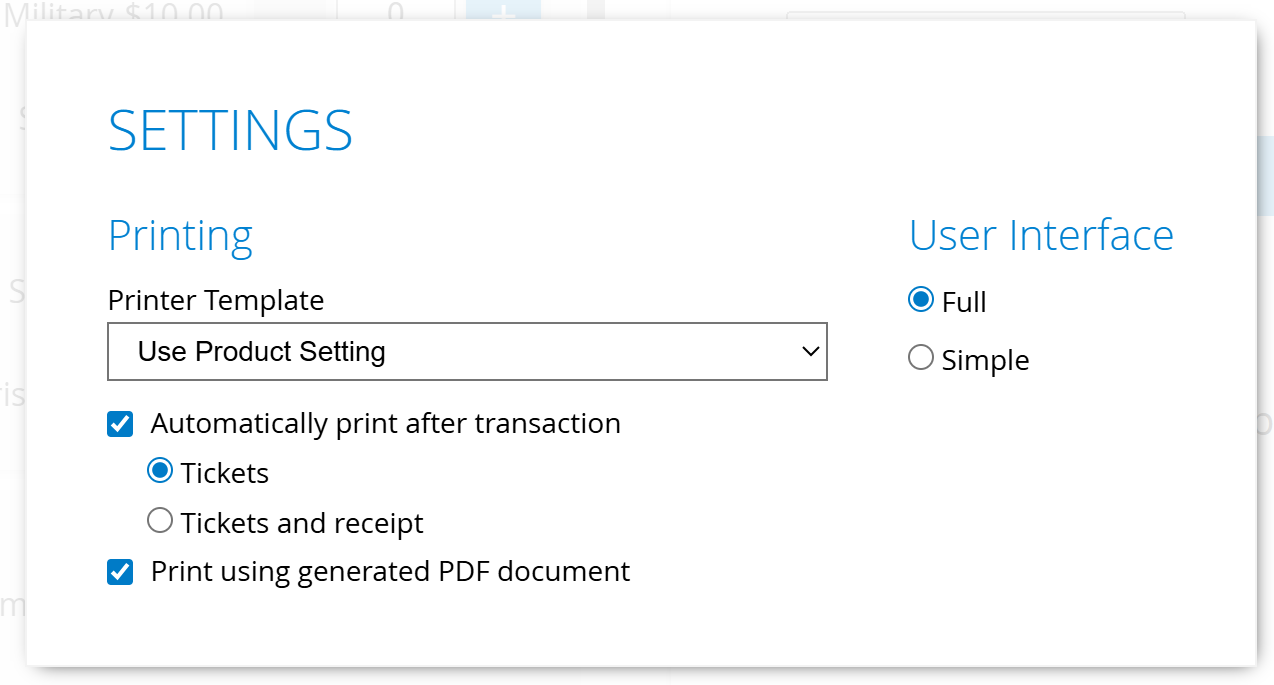
Example: When utilizing the new option of 'Use Product Setting' in the Printer Template dropdown in Box Office Settings, if you have a different ticket design for your Drink Token General Admission product vs. your Admission General Admission product, they will print out of Box Office respecting the template chosen on each particular product.

If you need custom ticket templates created, reach out to your Saffire ticketing account manager for guidance/assistance.
Export Optimization for Purchases Report
Spark Location: Commerce > Reports > Purchases
There has been major improvements to the optimization of this report. Previously there were limits on the number of orders/days that you could select when exporting all of the information from the Purchases Report Export Detail.
We drastically reduced the time it takes to export these reports and are excited for you to take control of your data faster and easier. No more waiting for Saffire to generate longer reports or consolidate multiple days/weeks/months manually.
Here's a comparison of a report for a month of sales, generating 18.5 million cells in the Excel file:
| Version | Get Data | Create Table | Create File | Total Time |
|---|---|---|---|---|
| before 8.4.1 Release | 4 minutes | 38 minutes | 8 minutes | 50 minutes |
| after 8.4.1 Optimization | 5.1 seconds | 9 seconds | 24 seconds |
38 seconds (99% reduction) |
New Box Office Configuration Tool
No more manually changing the hyperlink target on your desktop shortcut for Box Office.
When you login to your rented devices, you will now be able to enter your Site Domain and how long you'd like that URL redirect to stay active. Then anytime you use the Box Office link from your desktop, it will automatically direct you to your site.
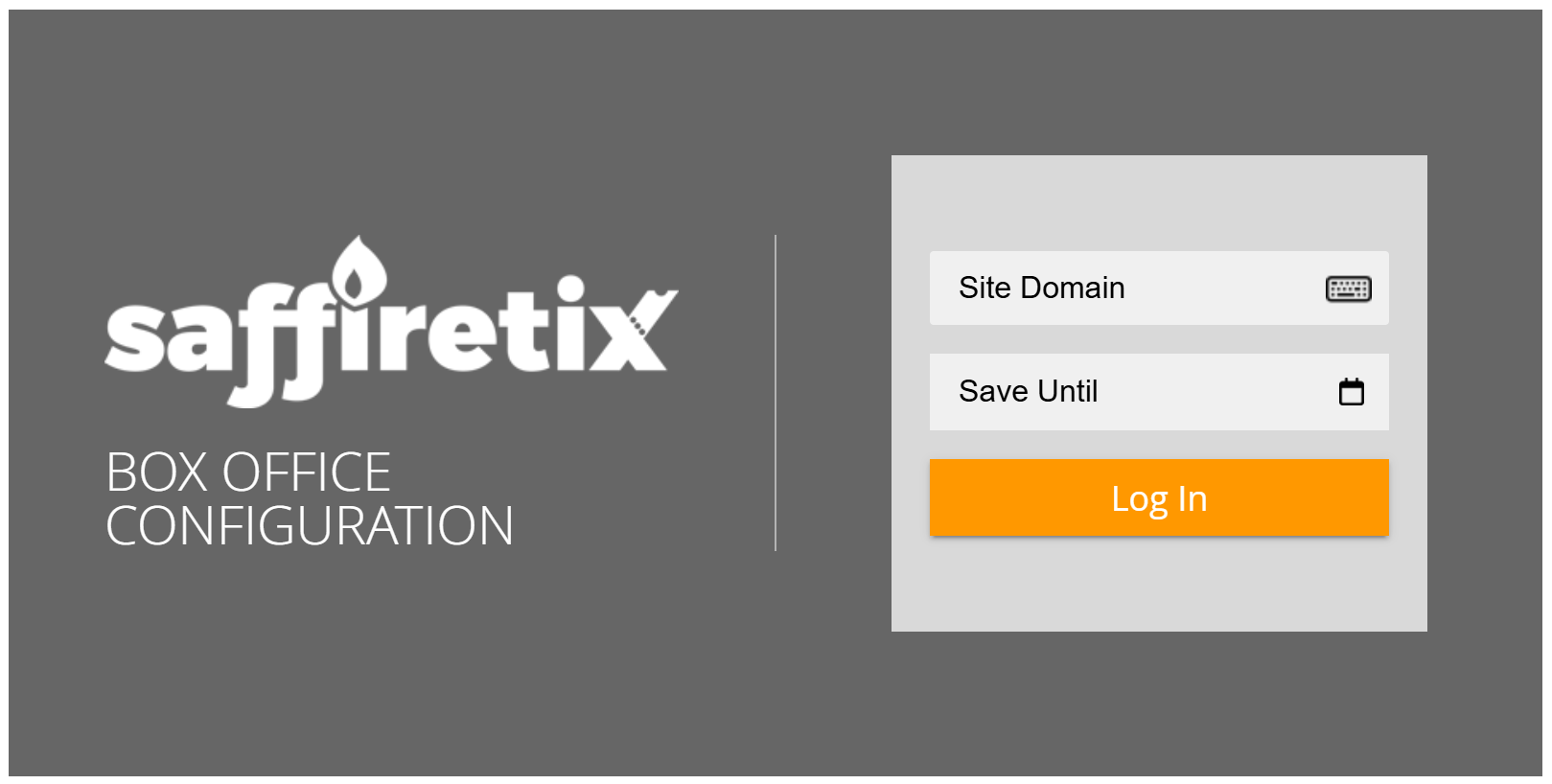
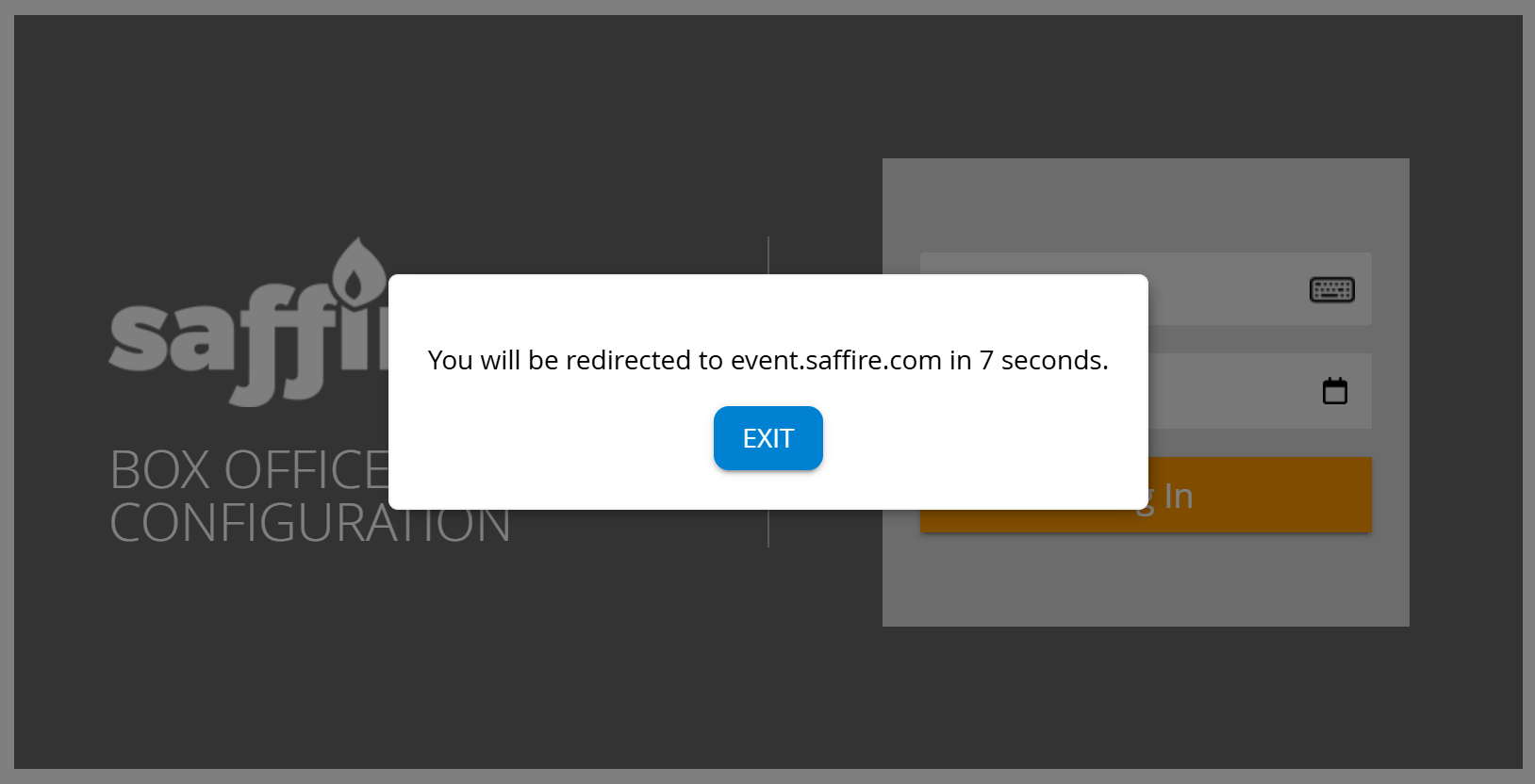
Hint: If you see the redirect popup going to a site other than yours, you have 10 seconds to click the EXIT button to re-enter your ' Site Domain' and 'Save Until' date.
Deletion Confirmations
A few steps in Spark are irreversible, so before moving ahead with deleting a section or module, or using the Record Only option, the platform now requires more than just a simple click of a button. These now require users to type in specific text in order to complete the operation. You'll see popups like these:


