Boca Lemur X Printer Troubleshooting
IN THIS ARTICLE
Troubleshooting First Steps
Printer is Undetected or Unresponsive
Tickets Not Printing
Tickets are Streaked or Smeared
Clearing Jammed Tickets
QR Code Printing at the Wrong End
Tickets Print with URL at Top and Bottom
RELATED ARTICLES
Boca Lemur X User Guide
Boca Lemur X Troubleshooting
Boca Lemur X Driver Installation
The Boca Lemur X printer is a high-performance thermal printer designed for ticketing, labels, and tags. In this article, we will be providing resolutions to some troubleshooting that you may come across with your Boca printer.
If you do not find the information you are looking for in this article, please use the orange "Help" button on the bottom right corner of the page to use our Chat, email us at support@saffire.com, or call 512-430-1123.
Troubleshooting First Steps
- When approaching a troubleshooting situation, try to think about what you do know. Was it working before? If so, what changed? Perhaps the system was moved to a new location, or a new user has logged in. Thinking about what you do know can help you to figure out what the best questions are to ask.
- Is your system sufficiently powered? Sometimes when devices are set up at remote locations, there may not be sufficient power for everything to work optimally. This may result in behavior that looks like an equipment issue, but is really just because a printer motor is just a little bit under powered. Bear in mind that powering devices off of long extension cords or overtasking a single breaker with extension cords can have unexpected results. Even inside a building, trying to power too many machines off of one breaker can cause things to behave poorly. Talk to your IT team about whether everything is getting sufficient power.
- Have you tried turning it off and on again? Sometimes this is enough to get things moving as intended. We particularly recommend turning the printer off, unplugging all cables, powering down your system, and waiting a minute or two to let everything cycle down. Then plug everything back in, reboot your system, and try another test print. If this doesn't work, move on by finding the particular issue you are facing below.
- Reinstall printer drivers. If none of these suggestions work, you may be able to get things working again by reinstalling the printer driver. We recommend removing the currently installed printer driver through the driver installation wizard, rebooting your system, and reinstalling the driver. For detailed instructions, see Boca Lemur X Driver Installation.
Printer is Undetected or Unresponsive
- Is the printer turned on, plugged in to the wall, and plugged into the PC? Printer should show green 'ready' LED on the side.
- Is the printer plugged into the same USB port as when the drivers were installed? Making sure the printer stays plugged into the same USB port ensures your system is able to find it correctly. If you are connecting to a SaffireTix laptop or PC the printer should be plugged into the port labeled Printer.
- Check for duplicate printer instances. Sometimes when a printer is not being detected it is due to there being a previous installation of the printer driver that is being seen instead. To check for this, open Settings > Bluetooth and Devices > Printers and Scanners. Remove all instances of other Microcom printers, then reinstall the printer drivers.
- Reinstall printer drivers. If none of these suggestions work, you may be able to get things working again by reinstalling the printer driver. We recommend removing the currently installed printer driver through the driver installation wizard, rebooting your system, and reinstalling the driver. For detailed instructions, see Boca Lemur X Driver Installation.
Tickets Not Printing
If the printer is installed, but tickets are not printing when trying to print a transaction order or the printer is showing as 'offline', try the following:
-
Make sure the printer settings in Chrome have the correct destination. You may need to change the settings using the main Chrome icon (not the shortcut) so it can update the shortcut.
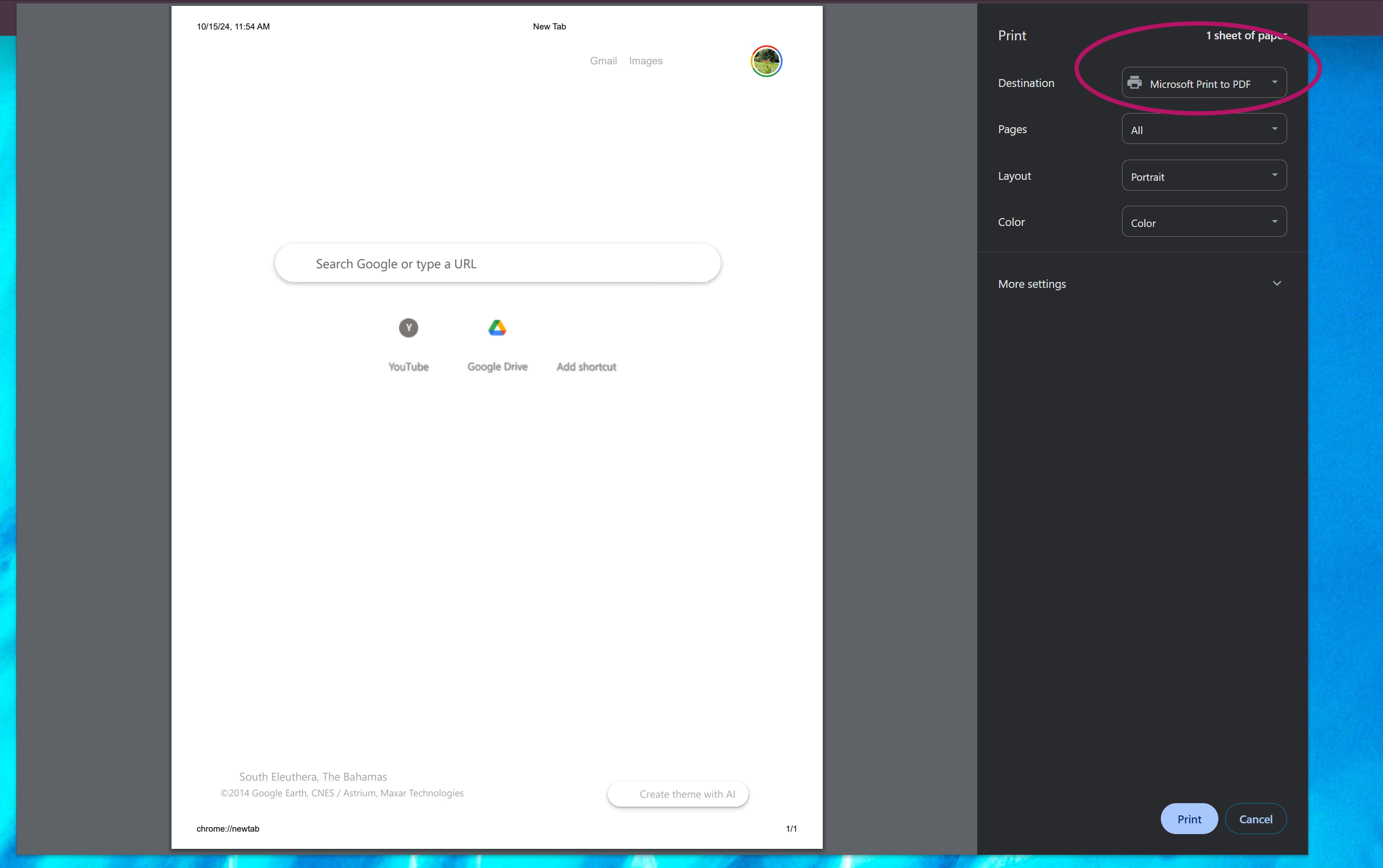
- When printing through Box Office, make sure the correct printer is selected in the settings.
- Make sure the cables are properly connected to the printer and laptop/computer. Be aware of any signs of severe wear/damage, as this may cause issues with establishing a proper connection.
- Even if the cables do not look damaged, it can be helpful to change the connection cables to rule out that option as what may be causing the printing issue.
- Try uninstalling, rebooting, then reinstalling the driver. For more information, visit our Driver Installation Guide.
Experiencing Streaks/Misprinting on Ticket Stock
Here are some ways this issue may be resolved:
- Clean the Print Head- We have instructions on how to complete this in our Boca Lemur X Printer User Guide article.
- Make sure the Microcom ticket template is being used, any Boca templates you see refer to a legacy type of Boca printer, not to the Lemur X. This can be done either in the product Ticket Face tab or the settings within Box Office.
- Make sure the printer settings are correct. You can check this using the Configure program for the printer. Here is a visual guide for those steps:
-
- Uninstall and reinstall the driver. The article can be found here for installation: Boca Lemur-X Driver Installation

Clearing Jammed Tickets
Here are some ways a jammed printer can be resolved:
- Attempt to remove the ticket stock, clean the printer head, restart the printer, and then re-insert the ticket stock.
- If the ticket stock cannot be removed, turn it off/on. This can help it reset and clear the jam.
To manually remove jammed tickets:
- Unplug the printer from the power source.
- Gently push down on the cover tab and slide the cover back.
-
Open the print head by pushing down and back on the Print Head lock/ cutter guard to unlock the print head. Lift up on the head mounting assembly/ thermal head and tilt back.

- Remove jammed tickets. While you have the printer open, clean the thermal print head surface (the side that makes contact with the paper) with isopropyl alcohol.
-
Gently lower the head mounting assembly/ thermal head and push down to center to lock in place. You will want to confirm that both sides of the latch are locked.


Printer Not Cutting Tickets Completely
Sometimes the Boca may leave a small bit of ticket uncut, forcing you to pull the tickets apart by hand. The cutting mechanism on the Boca Lemur X relies on the lower blade moving upward to slide past the upper blade. Usually when the cutter is not completing it is because the V shaped blade isn't making it all the way up to the paper due to lint buildup or grit. A thorough cleaning of the print cutter area usually clears this issue up. Follow the Clearing Jammed Tickets guide above to open the printer, and give the full area a thorough cleaning. Be very careful as you clean around the sharp cutting blades above and below!

QR Code Printing at the Wrong End (Printing Backward)

Ticket stock may be installed backward. To fix, turn the whole stack of stock over and feed it in from the other end. Follow instructions above or visit the Boca Lemur X User Guide.
If your stock is loaded correctly, you may need to change the orientation in the Boca Printer Configuration App. Orientation should always be set to P1 - Rotate 180. Refer to the Boca Lemur Setup Guide for more information about these settings.

Tickets Print with URL at Top and Bottom

If the tickets are printing correctly, but the print is small and includes your ticket URL, date, and page numbers, your Chrome settings might have the headers and footers selected to print. To check this, look at your printer settings before the ticket prints. You may need to open up the More Settings dropdown at the bottom.
If your Box Office is set to bypass the print dialogue, you won't be able to do it there. In that case, you can open a Chrome browser, and open something to print (even just right clicking an selecting print works for this). You can look at this setting, make sure it is unchecked, and if you make a change here it will update the default for the whole browser.
You should then be able to refresh the Box Office page (hit Control-F5), and try printing again to see if it is looking better.

Ticket prints off the top of the stock
If the ticket is printing out of alignment so that most of the ticket information is printing off of the top of the page, and only the very bottom information is showing, you may be trying to print in Edge browser. Saffire box office is designed to be used in Chrome, please log in on Chrome and attempt to print again.