
Reports - Audit
IN THIS ARTICLE
How to Pull Audit Reports
Sharing the Report
Editing Audit Shares
The Audit Report in Spark provides a live look at sold and unsold tickets for your events.
How to Pull Audit Reports
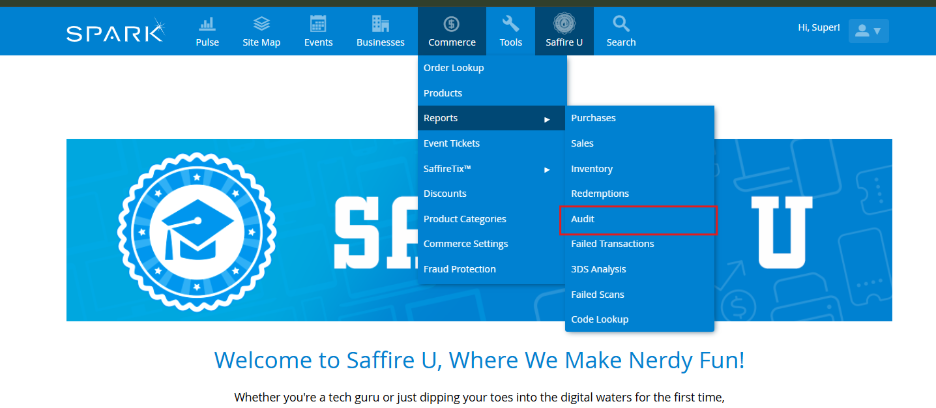
To pull an audit report in Spark, navigate to Commerce > Reports > Audit.
Next Filter to the Category, Subcategory, and/or Product you’d like to run an audit report on. You can stop at any of these levels in order to get the report you’d like, then select Go.

Your report should look something like this:
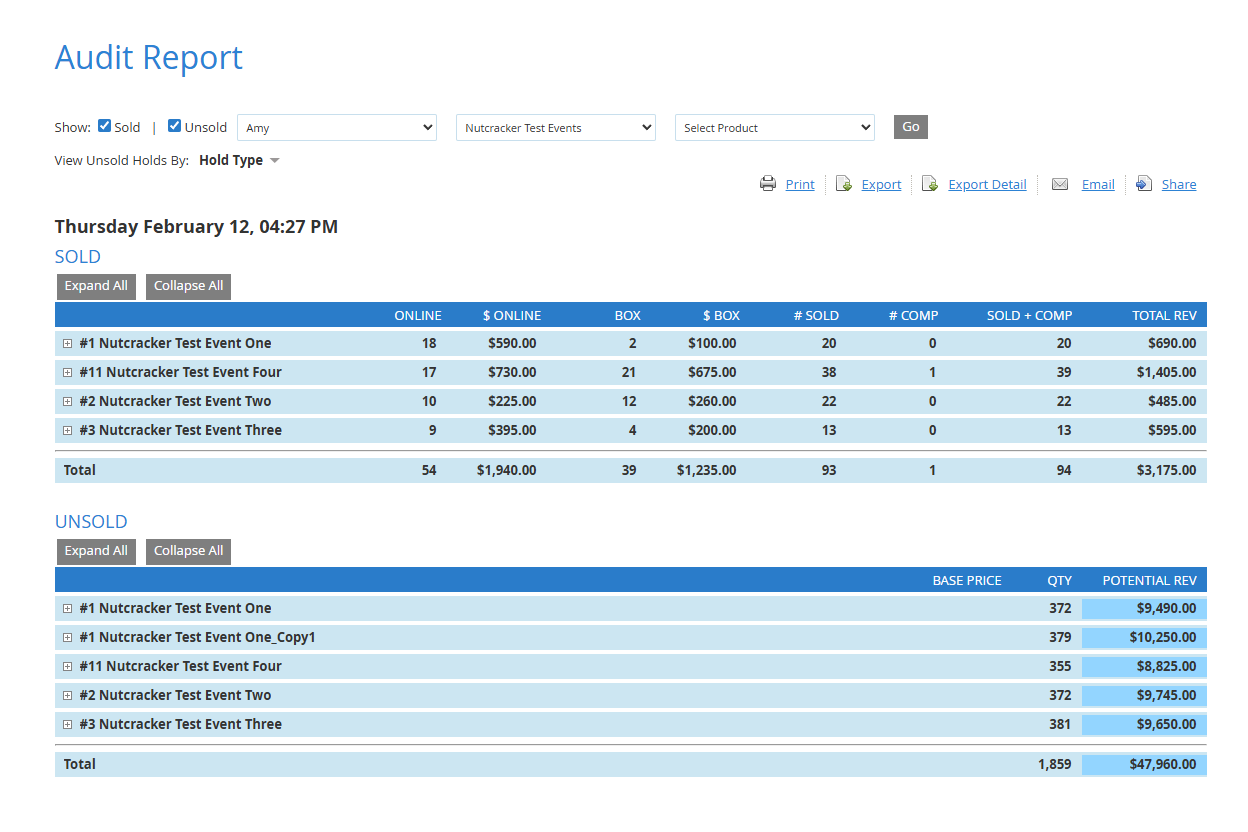
Please note that the “Unsold” option is only available for active products.
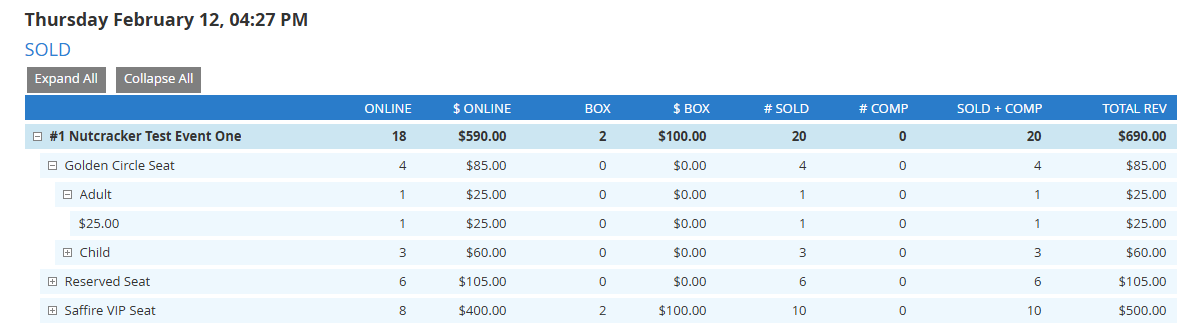
Line items can be expanded by clicking the + next to them. The Expand All button will show you details from each product including a breakdown of different price types (GA, Comp, etc).
Sharing the Report
Share options can be found in the top right corner of the report screen.
The Print option will print the view that you have on your screen, expanded or collapsed. If you print an audit report, we recommend adjusting the print to landscape to avoid having the report cut off.

Export
The Export option will download an Excel file containing the data for the selected products as a whole. Note that Sold and Unsold will each be in their own tab of the spreadsheet.


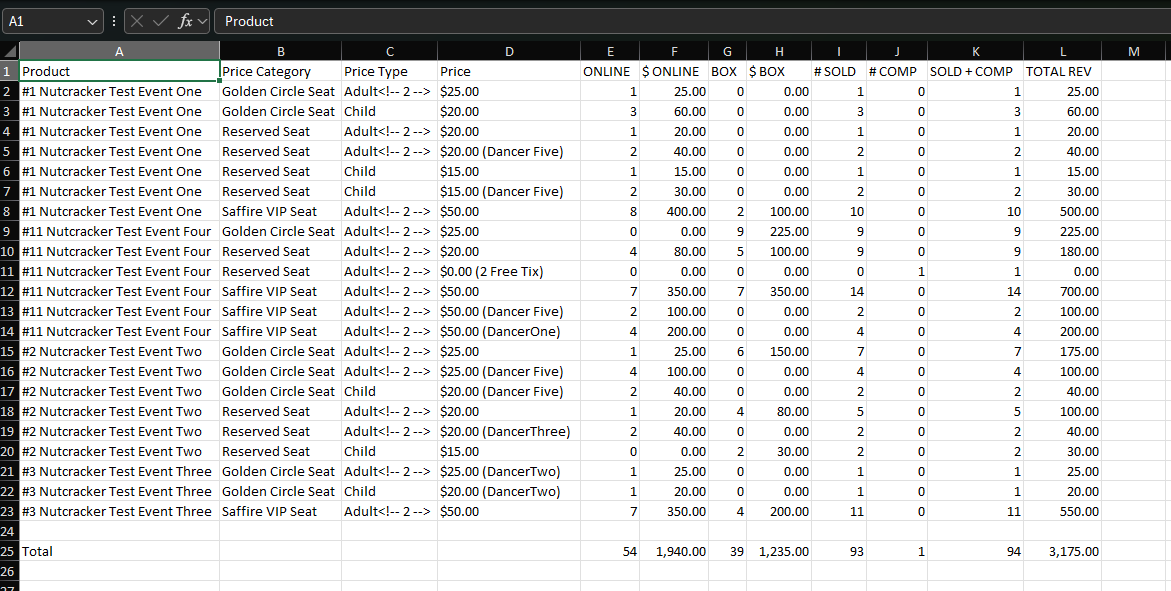
Export Detail
The Export Detail option will download an Excel file with a line item for each product as well as columns for product name, price categories, price types, and price.

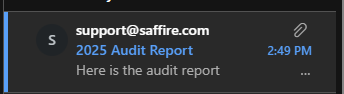
The Email option sends a one-time message to one or more email addresses with the regular (not detailed) export spreadsheet attached.

Here is how it may appear in an inbox.
Share
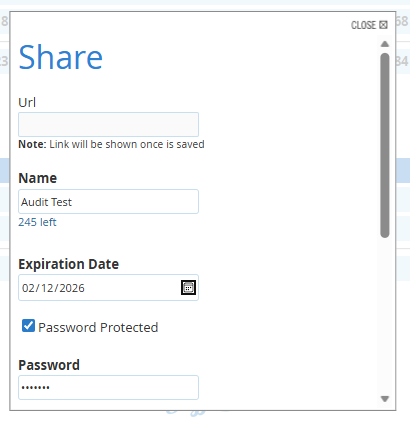
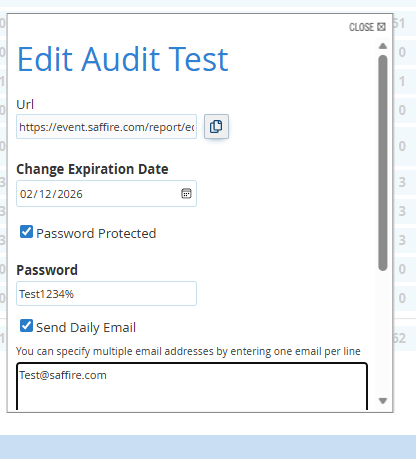
The Share option allows you to create a URL that will update every 24 hours with the latest Audit Report. It also allows you to configure some additional information like password protecting the page and sending a daily reminder email.

A couple of notes on creating Audit Shares:
- The URL will not appear until after the Share is saved.
- Be sure to set an expiration date that full encompasses the time you want this report available and be sure to keep track of the names of the Reports you are sending this information too.
- If you every need to cancel a share early, you’ll need to reach out support@saffire.com.
Prior to saving:
After saving:
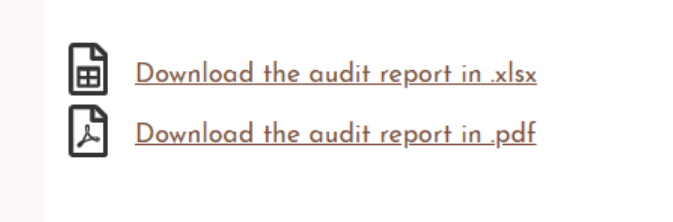
The daily email will contain a link to a page on your site with the options to download the report in Excel (as a .xlsx file) or as a PDF.
Editing Audit Shares
Audit Report Shares cannot be managed directly by users in Spark. To stop receiving outdated or unnecessary audit report emails, contact support with details about the specific reports you want to cancel. Support can locate and disable these shares, stopping the emails without affecting your Spark interface.