
Vet Tix setup
IN THIS ARTICLE
First Time Setup
Custom $0 Payment Type
Create a Vet Tix Product or Price Type
Completing the Donation Transaction

Saffire is a proud partner of Vet Tix, allowing hundreds of fairs and festivals across the country to easily support veterans, currently serving members of the military, first responders, and their families through ticketing and the magic of live events. By enabling Saffire's Vet Tix integration, you can make donations of event tickets through the Vet Tix platform right from your SaffireTix web Box Office interface with no integration fees, and with your SaffireTix ticketing fees waived for all Vet Tix donations.
First Time Setup of Vet Tix Location
- Reach out to your Ticketing Account Manager and request to have the Vet Tix integration enabled on your site.
-
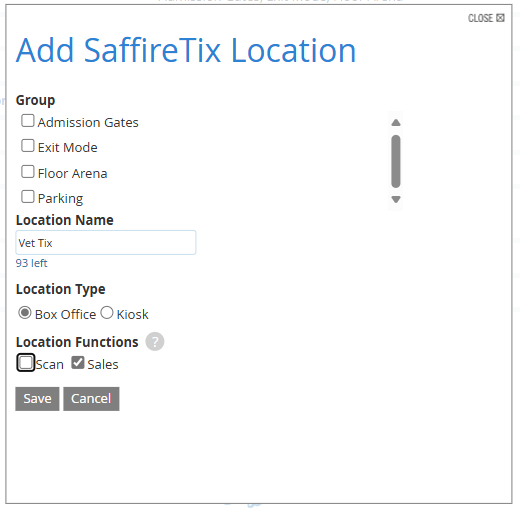
Once Vet Tix is enabled, add Vet Tix as a SaffireTix sales location under Commerce > SaffireTix > Locations, with only Sales enabled.
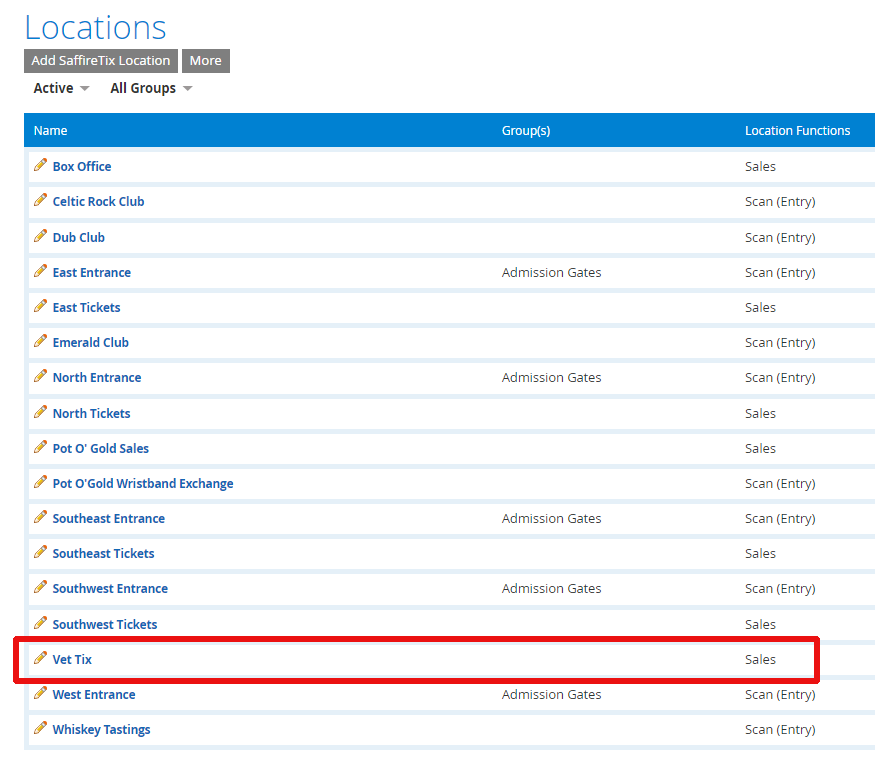
You should now see Vet Tix in your list of locations.
-
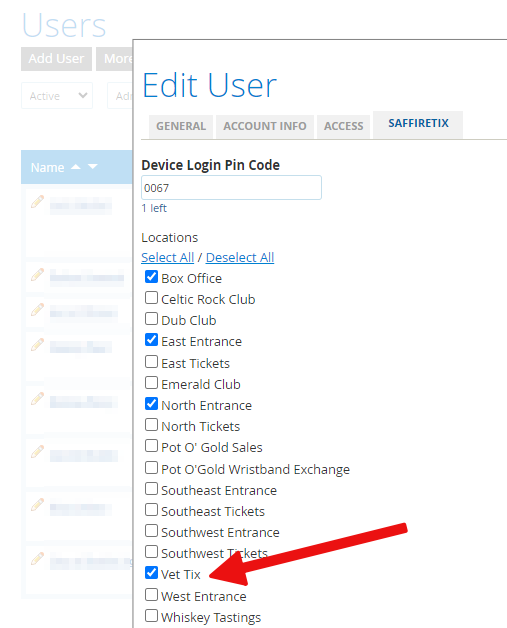
Add the Vet Tix location to the appropriate Admin Users (on the SaffireTix tab):
- You are now ready to create bulk Vet Tix orders in your web Box Office interface to send tickets to the Vet Tix platform. Continue with the following instructions for details.
Custom $0.00 Payment Type
In order to send tickets to the Vet Tix platform to be purchased by veterans, you must make a bulk order through your Box Office interface for the tickets you are sending. This would normally result in a large order showing up as revenue in your reporting. To avoid this, a custom payment type should be created for $0.00 orders. This will allow you to track your comps and donations for instances such as:
- Vet Tix
- Sponsors
- Media
- Trade
- Donations
- etc.
To add a payment type, navigate to Commerce > SaffireTix > Payment Types:

Create a new payment type, or edit an existing type to enable for $0 orders.

In Box Office, you will be able to create your full order and then select which custom payment type is to be used using the Other button and dropdown before clicking SUMBIT to complete the order.

Using this method with the Payment Type: Vet Tix will allow you to leverage our integration into the Vet Tix platform while not reporting tickets as being revenue in the Sales Report and Audits. This will no longer give you clear visibility of a Donation $ amount as the reporting will show $0.00.
Create a Vet Tix Product or Price Type
You can set up unique products for Vet Tix or add a price type on an existing product.
Creating a custom product for Vet Tix Donations
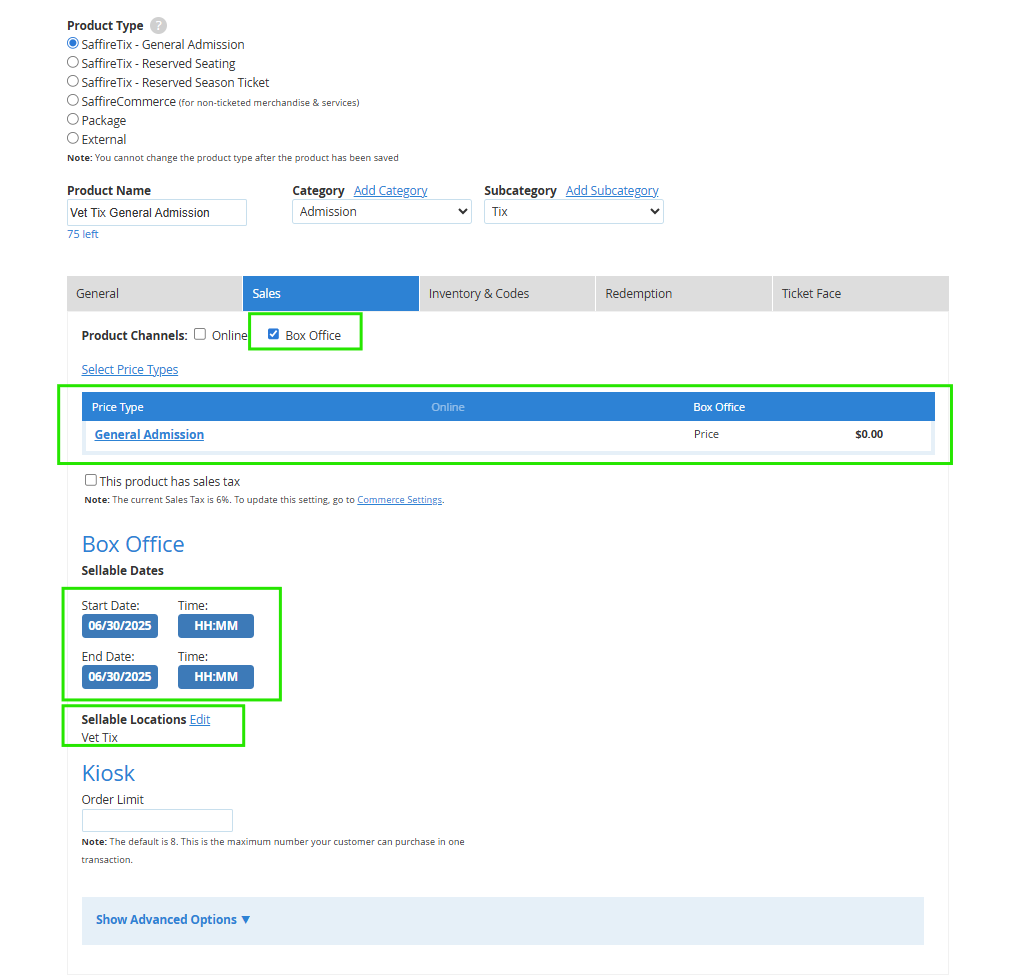
- Create a new product within the category you are donating. Tickets will be scanned at the event just like a regular ticket, so make sure the event dates, redemption dates, etc are set up correctly for the event. Vet Tix products can be created for both General Admission or Reserved products.
- On the Sales tab, add the Box Office channel and enable the Vet Tix sales location. Sellable dates should align with the date you are setting up the ticket donation, not with the event date.
- Add the price type you would like to use.
- When creating a custom product for Vet Tix donations, you can create a custom price type, or use an existing price type.
-
Set the price to $0 (follow the instructions above for creating a custom $0 payment type).
Setting up an Existing Product for Vet Tix Donations
-
To set up a custom Price Type, navigate to Commerce > SaffireTix > Price Types
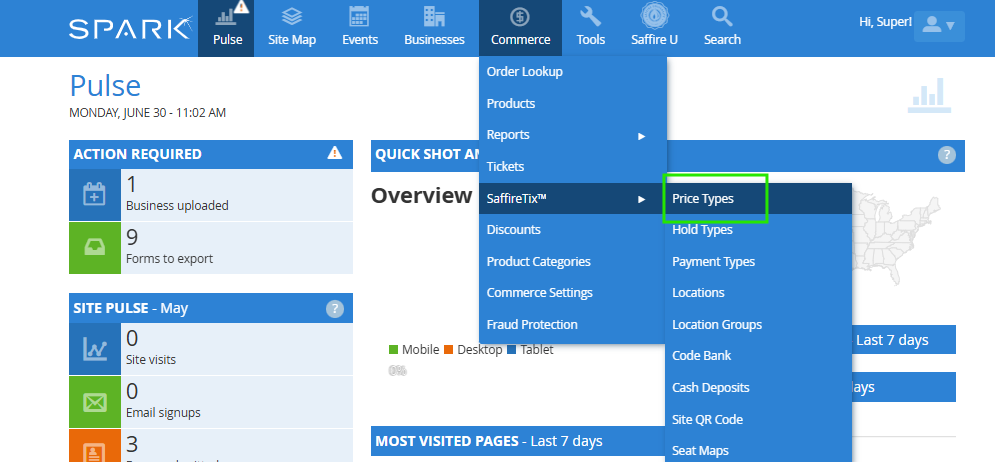
- Add a price type for General Admission, Reserved Seating, or both, depending on which tickets you'll be sending to Vet Tix.
- Add the price type to the existing product you would like to send to Vet Tix.
-
Set the Vet Tix price type on the product to sellable through Box Office and assign a price. You can set the price for a normal ticket price, or for $0, depending on how you would like your reporting to show your donation. If you are using a $0 price, follow the instructions above for creating a custom $0 payment type.
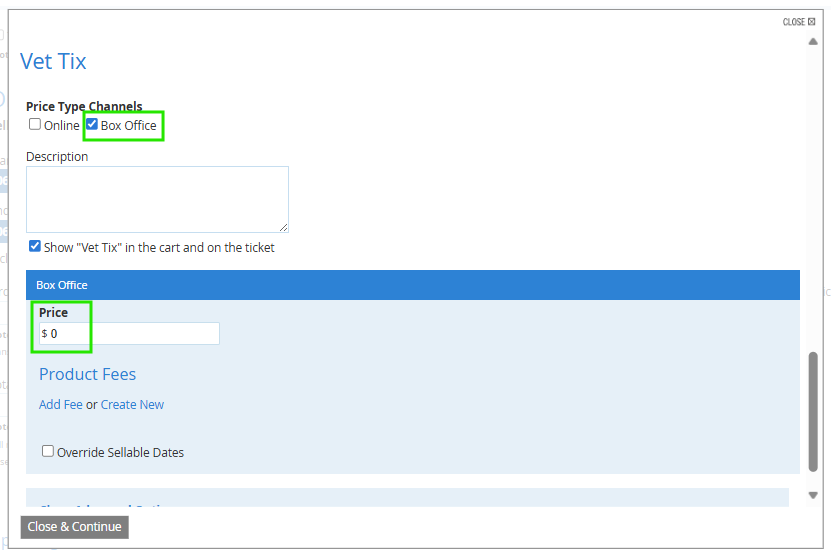
-
On the Sales tab, add the Box Office channel and enable the Vet Tix sales location.
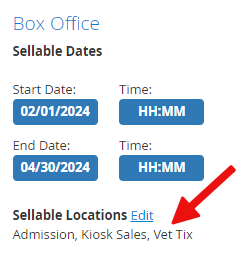
-
Sellable dates should align with the date you are setting up the ticket donation, not with the event date. If you prefer, you can override the sellable dates in the Price Type settings to allow the transaction to be completed.
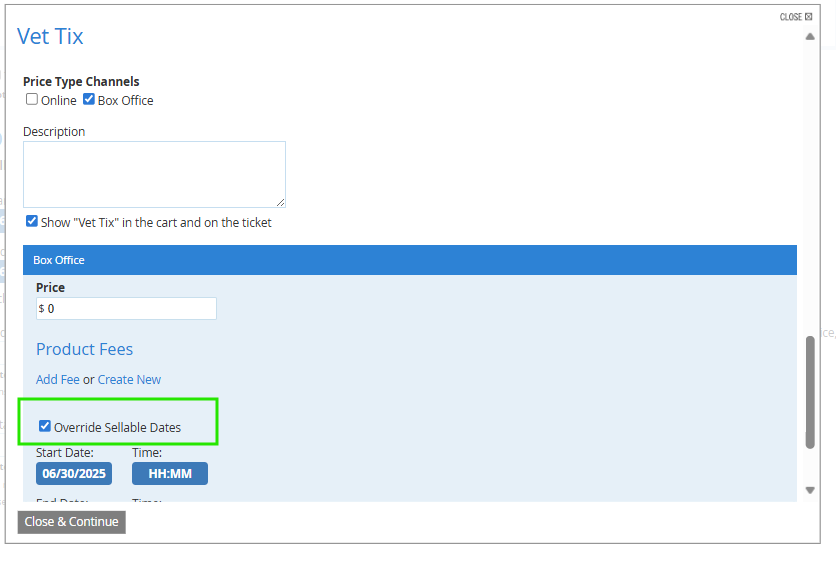
-
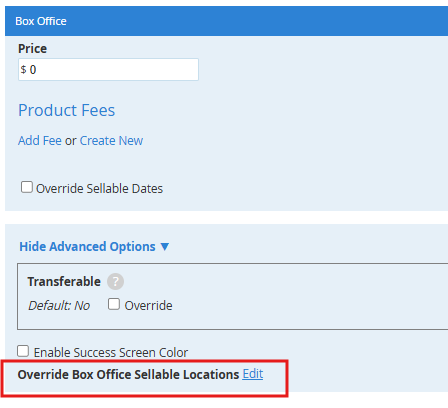
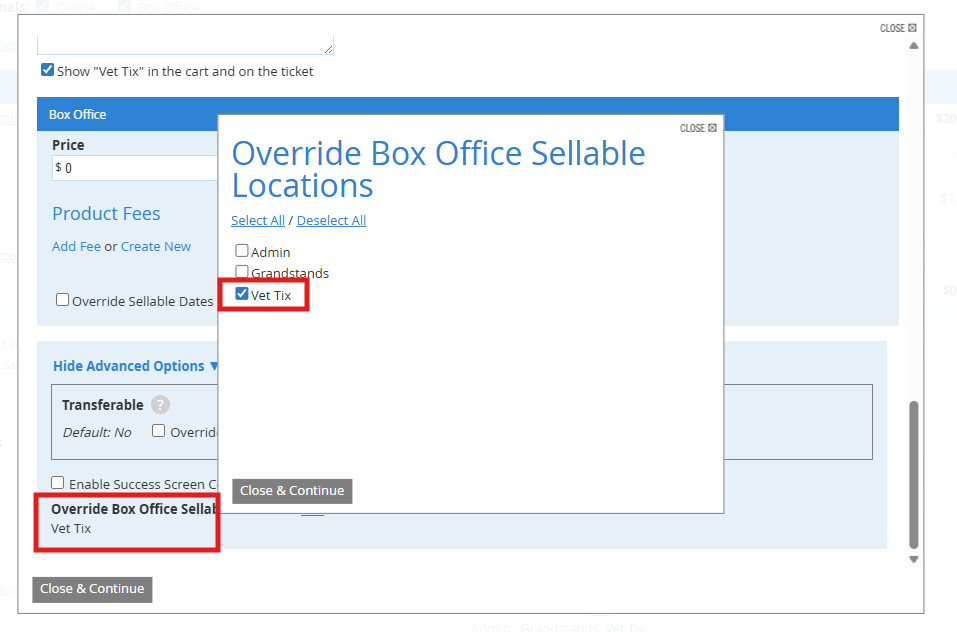
In the Price Type settings window, scroll down and open Advanced Options. Select Override Box Office Sellable Locations. To prevent Vet Tix tickets being available for sale at any other locations, select only the Vet Tix location.
Completing the Vet Tix Donation Transaction
How it Works
- Completing your box office transaction will automatically send the order(s) to your donor account in the Vet Tix system. Vet Tix can automatically update your submitted orders for inventory changes.
- Orders should not exceed 1,000 tickets per transaction, so if you’d like to donate more than that, you’ll need to create separate box office transactions to get to your desired donated quantity.
- It's best not to pull back offered inventory. If you need to, please coordinate with your Vet Tix account owner.
- Your veteran customers will acquire the tickets directly from the Vet Tix app by entering a lottery system and completing a Vet Tix fee payment if they're selected. They will then receive their tickets in the Vet Tix app. Veterans will handle everything about receiving their tickets through the Vet Tix system.
- When the customer arrives at your event, they’ll pull up the ticket in the Vet Tix app and it will scan just like any other ticket with our SaffireTix app. Saffire will waive all fees related to your Vet Tix tickets.
Completing the Transaction
-
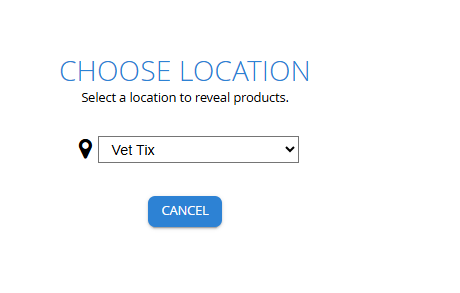
Log into your web Box Office interface and select the 'Vet Tix' location.
-
Choose 'Vet Tix' as the Payment Type when completing the order (it will show under 'other')
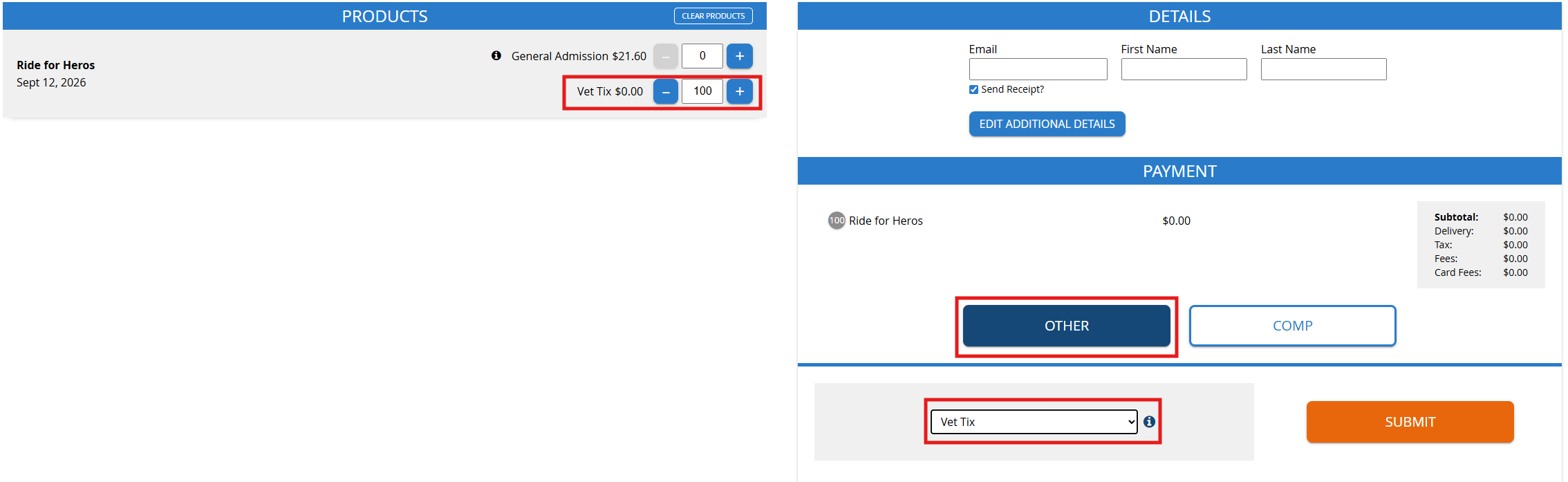
- Submit your order to automatically send the selected tickets to the Vet Tix platform.
- You can reach out to your Vet Tix rep to check that they have received the order.
