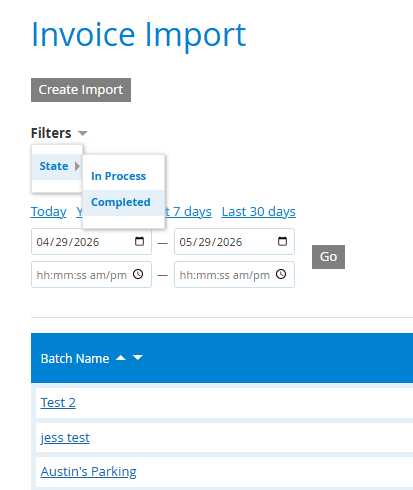
Invoice Import tool
IN THIS ARTICLE
Download the template
Validate invoices
Create invoices
Review invoices
Send invoices
Invoice Dashboard
This tool allows you to generate invoices in bulk for products or events.
Some great use cases for this include:
- Renewal of specific seats from year-to-year events
- Sponsorship Orders that will be paid before they gain access to their tickets
- Bulk Orders for schools or secondary organizations
Spark location: Commerce > Utilities > Import Invoices
📢 When you're ready to import your first batch of Invoices, reach out to your Ticketing Account Manager and you can walk through the steps together.
Download the template
Navigate to the Import Invoices page in Spark: Commerce > Utilities > Import Invoices
- click Create Import - this opens a popup window
- click Download Excel Template
Validate invoices
Note: The template opens to an Examples tab showing a variety ticket products. You don't have to remove these examples when you import the file - just reference this tab for the data you need to include on the Invoices tab of the same Excel file.
The heading types above each of the examples should not be included on the Invoices tab - just add the appropriate customer & product data to each column.
- after adding your data to the template, click Choose File under Excel Import
- enter the Invoice Batch Name - this is a reference point that you will be able to see on the Purchases Report
- enter the Invoice Due Date - This is the due date for ALL invoices included in the import, you can manually change dates of each invoice if you need, but there is no other bulk date setting.
- click the Validate Import button at the bottom of the window
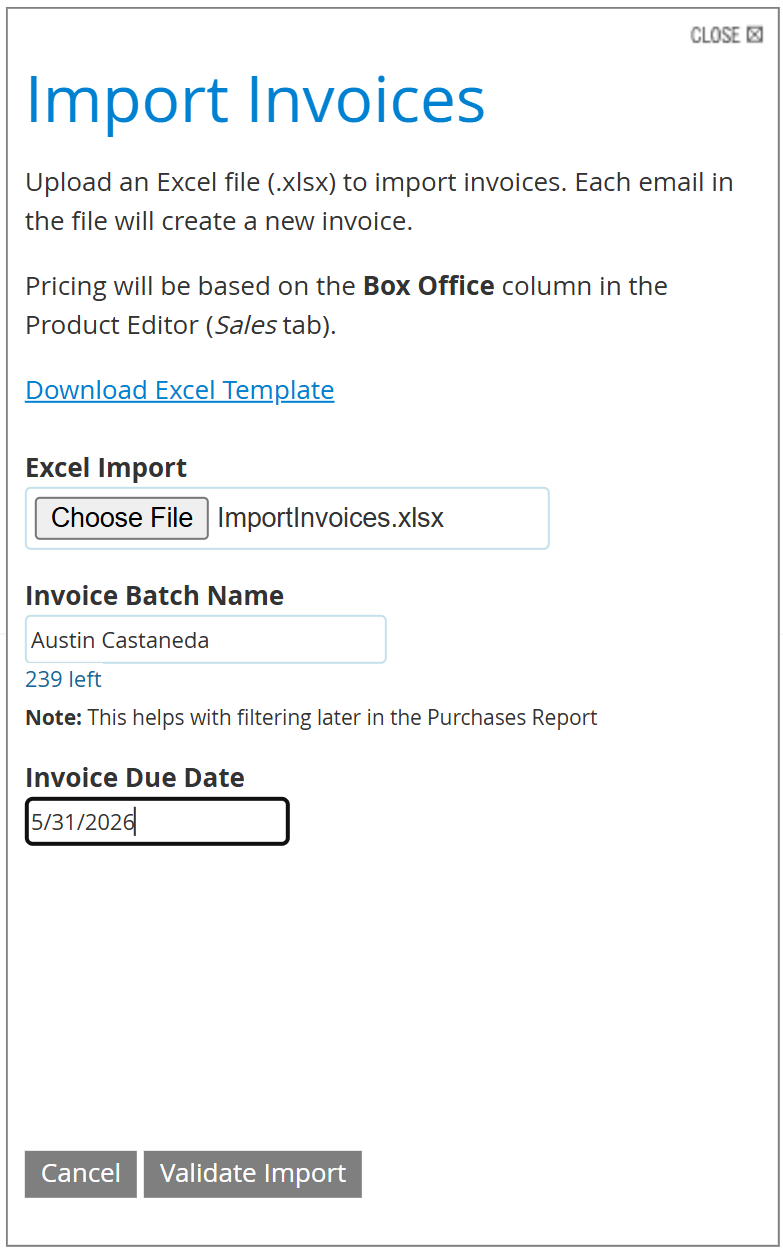
✅ This validation step verifies that the tickets you are adding to orders are available.
- For reserved products, this validation includes things like verifying that a seat with a matching section/row/seat exists, hasn't been sold, etc.
- For general admission, validation includes things such as there is a set Quantity requested for each invoice and that Qty doesn't exceed any inventory thresholds set on the product.
Create invoices
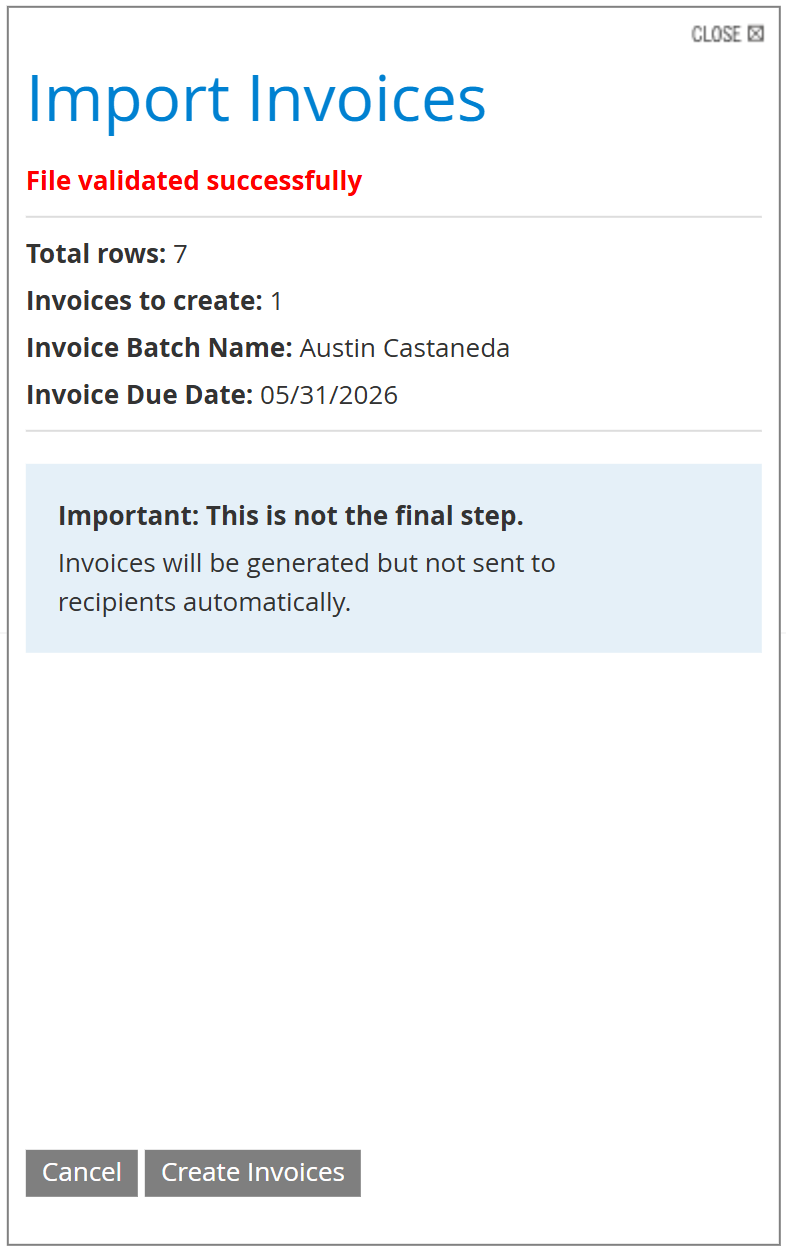
After successful validation, you will see a list of the number of invoices that will be created as part of this import. THIS IS NOT THE FINAL STEP!
- Verify the number of Invoices that will be created, then click the Create Invoices button
Review invoices
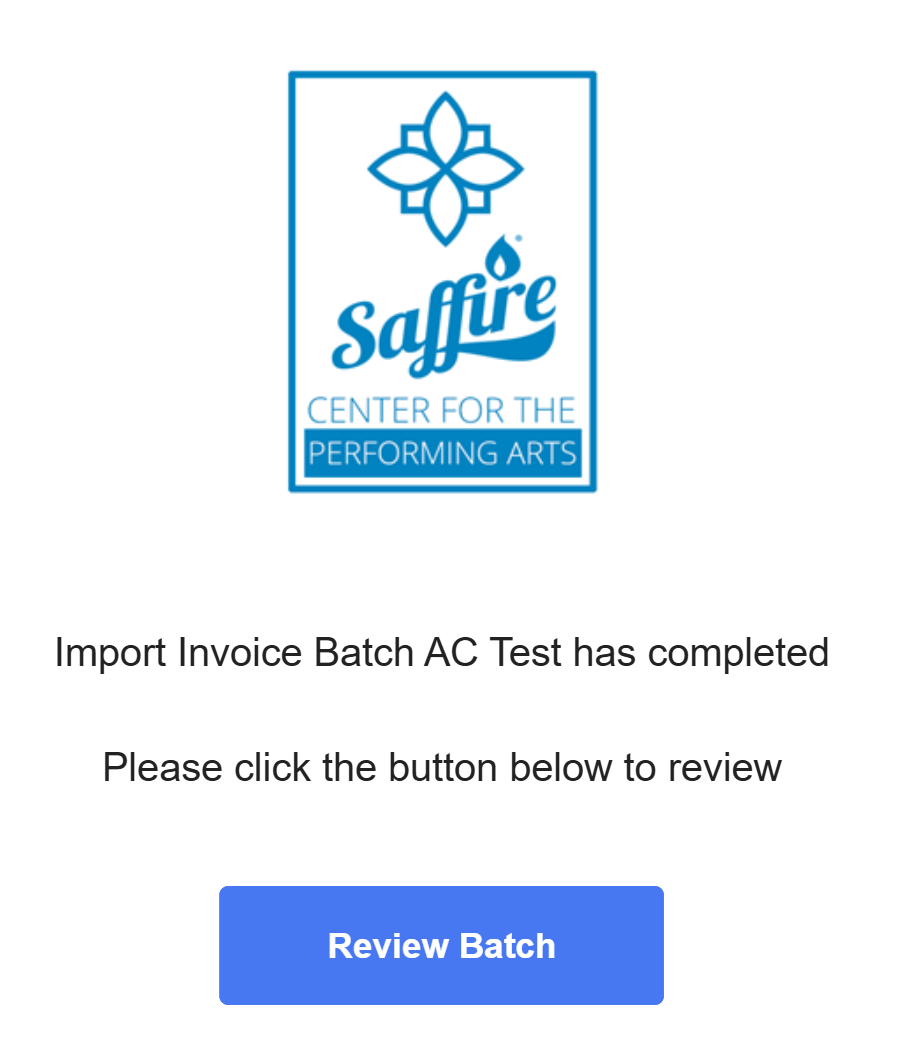
After you click Create Invoices, they will be generated in the background and you will receive an email once they are completed and ready to be sent to your recipients.
‼️Invoices are not automatically sent, you will need to navigate to the Purchases Report and use the bulk action tool to send any 'Not Sent' invoices to your customers.
- Click the Review Batch button from the email to view all of the batched invoices and their status.
Send
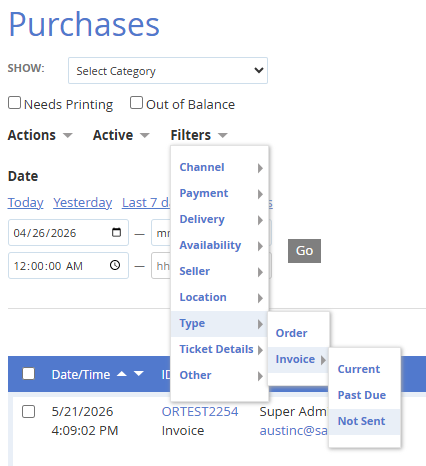
- Navigate to the Purchases Report in Spark: Commerce > Reports > Purchases
- Filter to Type > Invoice > Not Sent
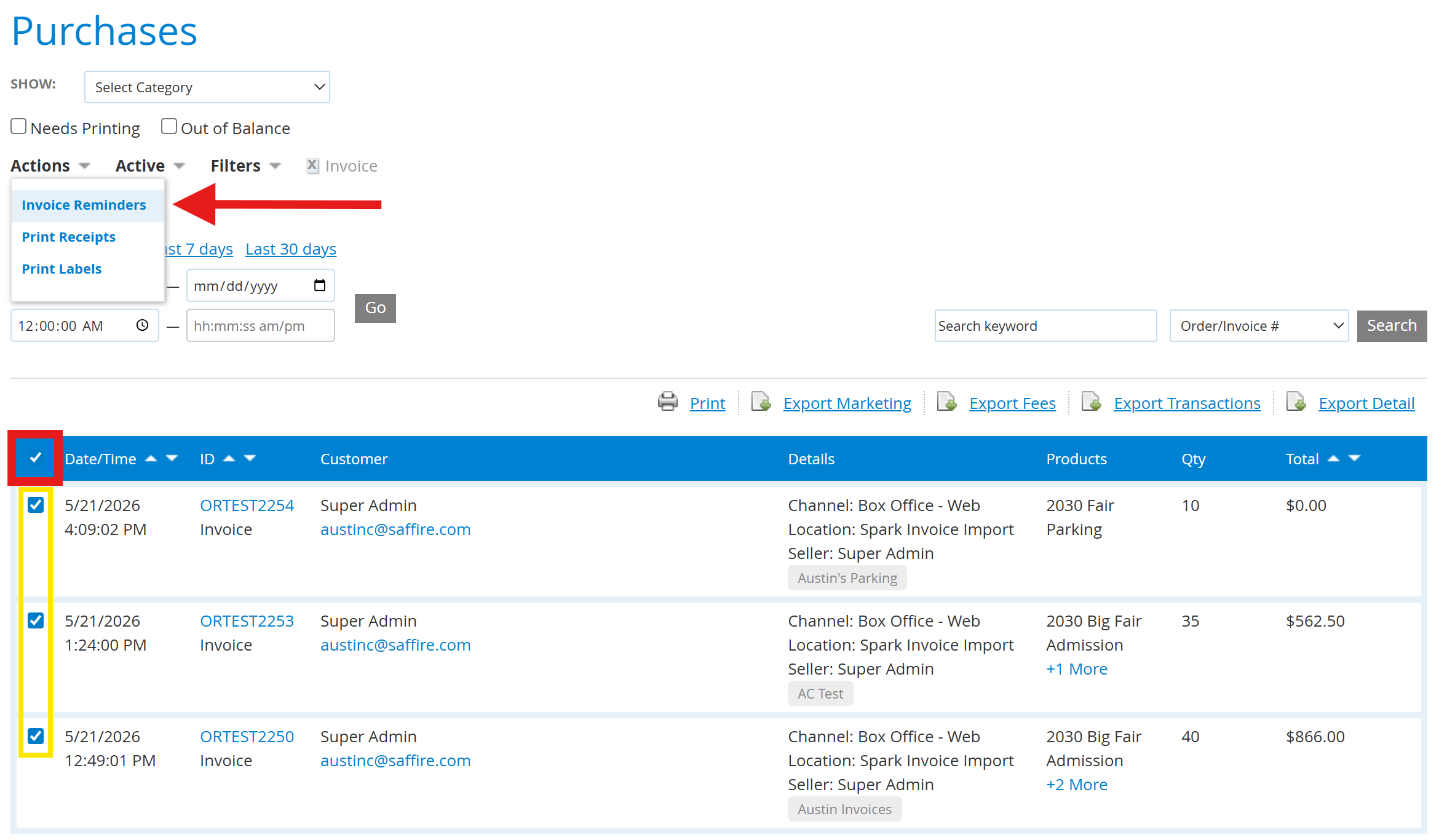
Use the Actions dropdown to send an Invoice Reminder.
- Check the box(es) of any/all invoices you want to send. The box in the blue bar will select all.
- Select Invoice Reminders from the Actions dropdown
- You can change any of the content in the Email Invoice Reminders window. Note the Email Key displaying several 'tokens' which can be used to automatically add invoice data to the message.
- Once you've fine-tuned the content, click Send
Invoice Import Dashboard
After sending your invoices, you can review their progress & history from Commerce > Utilities > Import Invoices
- Filter invoices 'In Process' or 'Completed'
-
You can click on a batch name to View Invoices (which returns you to the Purchases report) or Export Detail which downloads an Excel file.