Sparky AI
IN THIS ARTICLE
SEO Suggestions
AI Suggestions for Page Content or Social Content
Generating Page Content with Sparky AI
Generating Social/Email Content with Sparky AI
Regenerating Content
RELATED ARTICLES
You've seen Sparky, our handy AI buddy, in the bottom right corner of Spark for a while. Sparky is always ready to answer your questions and assist you with information anytime you need. Sparky now is being brought into your Event Pages, Business Pages, and all of your site's Dynamic Pages.
Better than ever, Sparky can help you create content or serve as your SEO expert.
|
|
|


Anywhere you see the green 'magic wand' icon or Sparky, you'll be able to utilize AI to assist you.
Note: AI-generated suggestions may not be fully accurate or suitable. Please review and edit as needed. Saffire is not responsible for published content.
Sparky AI: SEO Suggestions
Seach Engine Optimization (SEO) tools are already built into your Saffire website. These tools can improve how easily your site appears in search engine results, such as Google. Optimizing key parts of your site through SEO makes it easier for customers to find your organization as the official website and increases the online visibility of your events and business.
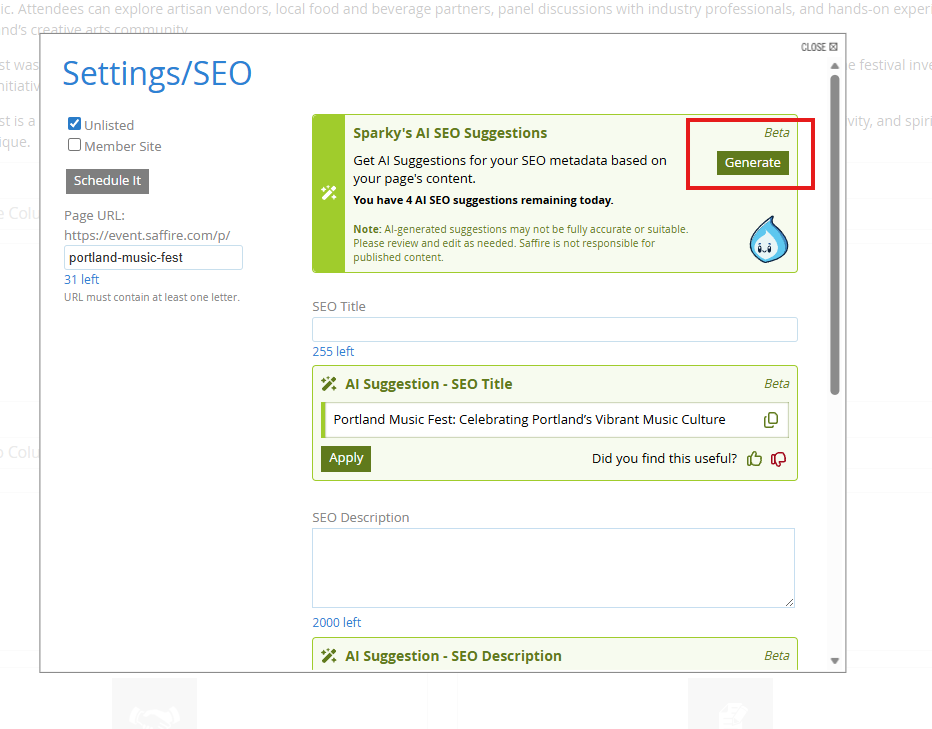
With this new feature, you don't have to be an SEO expert to generate impactful keywords, descriptions, or even the SEO title for each page. You can simply:
- Enter your page content as usual.
- Save any pending changes on the page
- Click on Settings/SEO on the Tool bar on the right of the screen
- Then click Generate
- Choose which fields you wish to Apply
- REVIEW and/or MODIFY the results
Providing a thumbs up or thumbs down will help us understand if you find this tool useful.

|

|
Sparky AI: AI Suggestions for Page Content or Social Content
Sparky's AI Suggestions are recommendations to enhance your page content for clarity, readability, and engagement. Sparky can also create content for posting to your social media or email marketing based on your page content.
|
|
|
|

Generating Page Content with Sparky AI
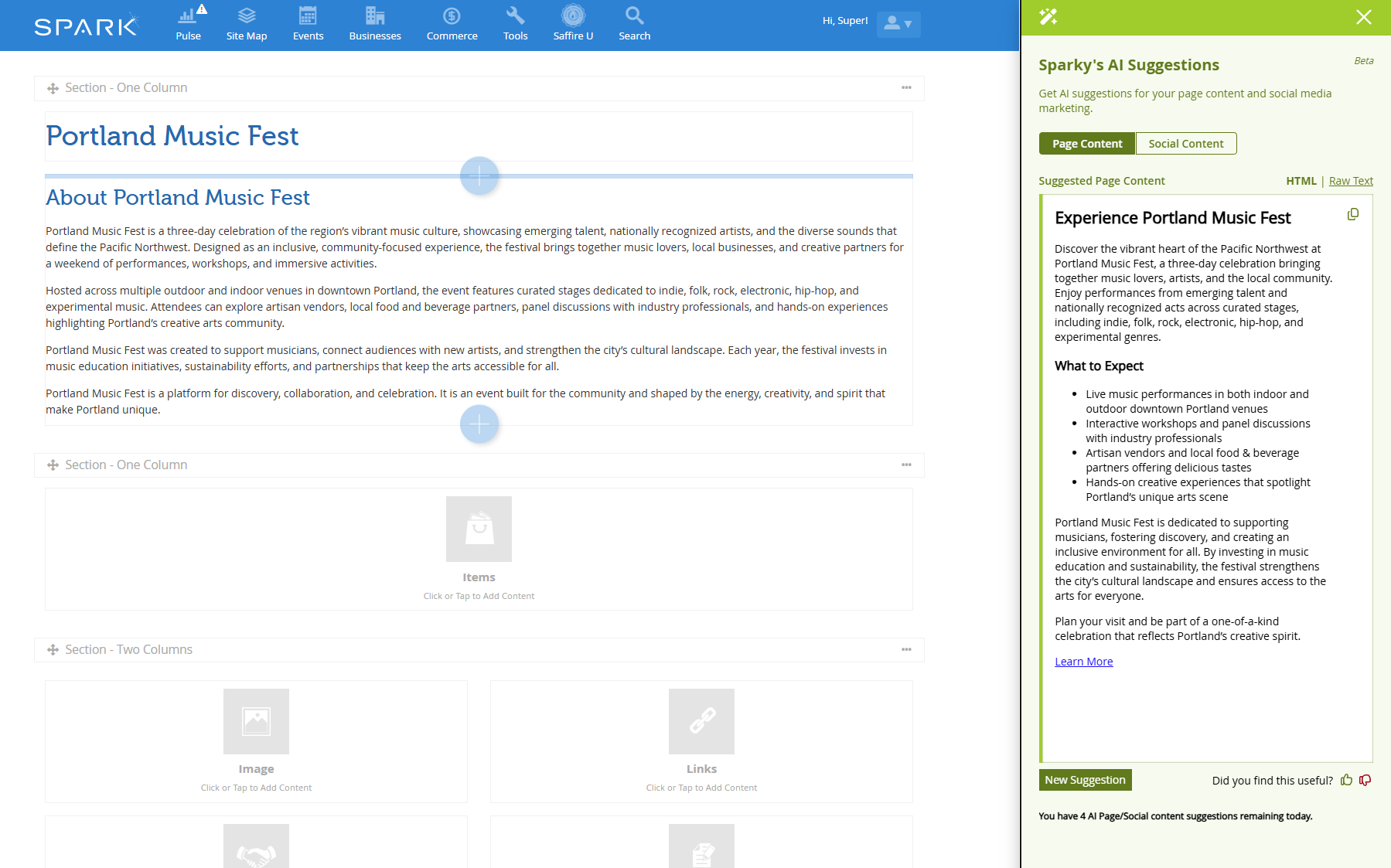
- Enter your page content as usual.
- Save any pending changes on the page.
- Click on AI Suggestions on the Tool bar on the right of the screen.
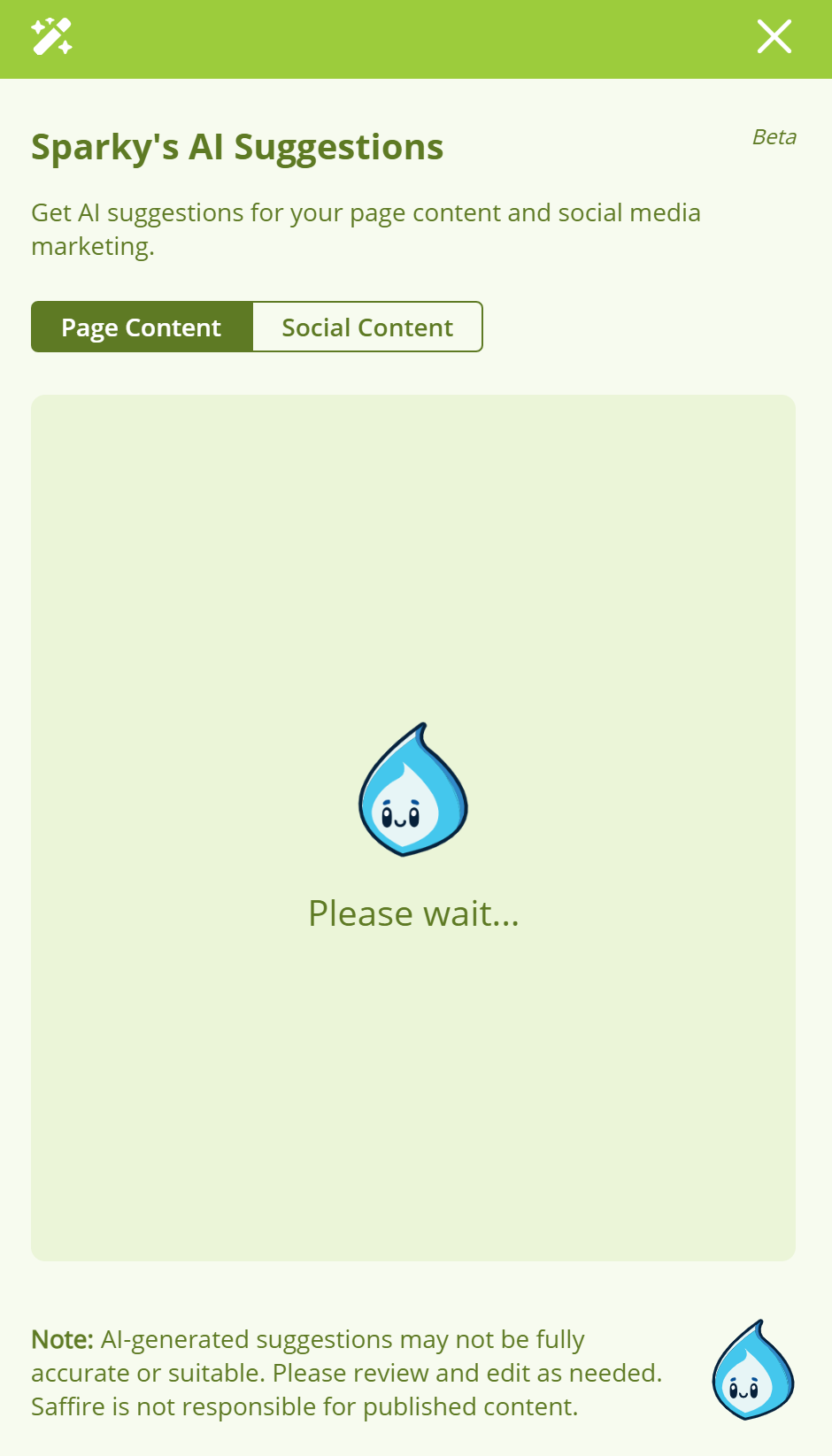
- AI enhanced content will automatically begin to generate. This part may take a moment.
- Review the content for accuracy and completeness.
- Copy the content you wish to move to your page and paste it into the appropriate modules according to your design.
- Once the content is pasted into your modules, you will be able to modify the content as you need.
- Be sure to check that links are pointing to the correct pages. Sparky is still learning!
Here's an example of Sparky's AI Suggestions in action (click to enlarge):
Generating Social/Email Content with Sparky AI
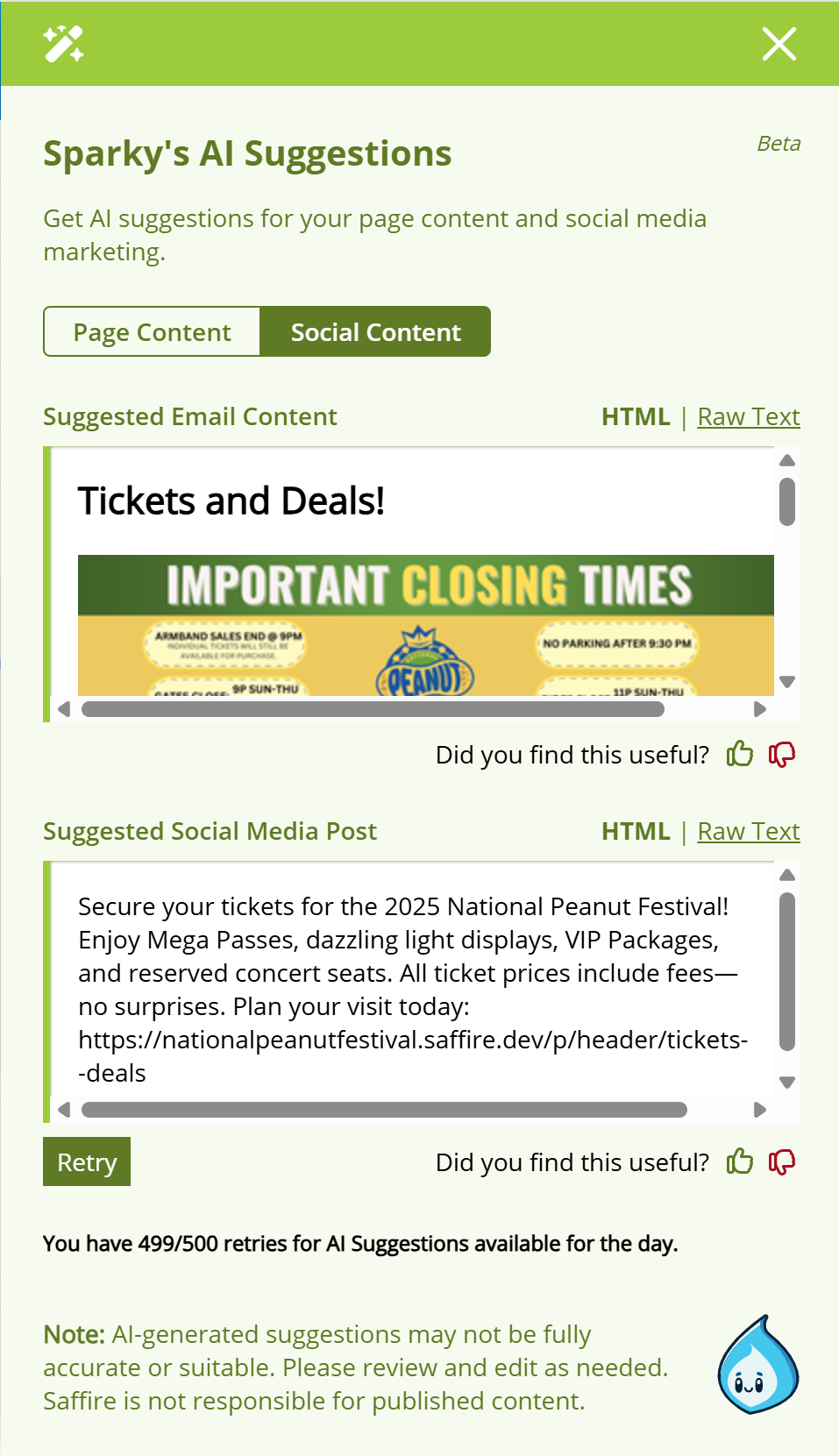
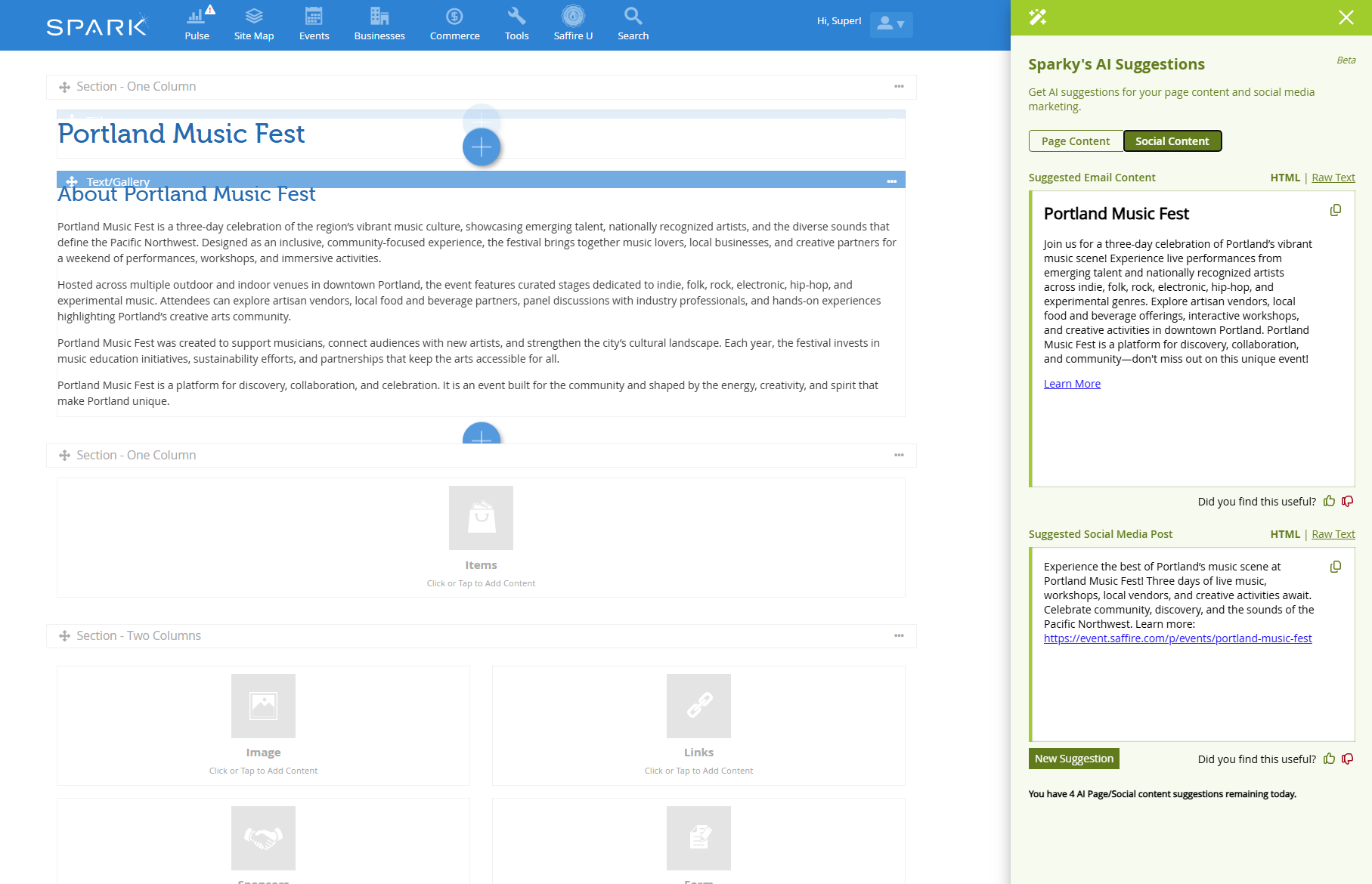
Sparky AI can also generate content for you to share with over social media or email. These suggestions will include social/email friendly layouts and suggested images.
- Enter your page content as usual.
- Save any pending changes on the page.
- Click on AI Suggestions on the Tool bar on the right of the screen.
- Select Social Content at the top of the section.
- AI enhanced content will automatically begin to generate. This part may take a moment.
- Review the content for accuracy and completeness.
- Copy the content you wish to use, and paste it into your social media or email program.
- Once the content is moved, you will be able to modify the content as you need.
- Be sure to check that links are pointing to the correct pages. Sparky is still learning!
Regenerating Content
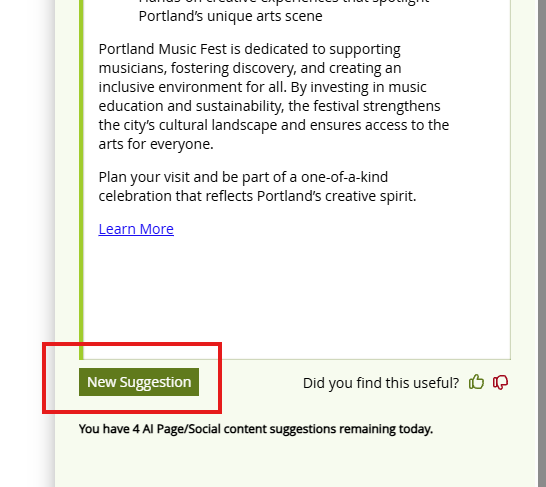
If you aren't happy with the content that Sparky has created, you can try regenerating the content by selecting New Suggestion at the bottom of the Page Content/Social Content window, or selecting Generate at the top of the SEO Suggestions window.
Regenerations are limited to 4 daily regenerations for SEO, and 4 daily regenerations for Page/Social Content per user and per day. That means that each user can regenerate on each page 4 times daily for both SEO and Page Content!
If you are having trouble getting an accurate generation, we recommend checking on your original content to make sure it is clear and complete.