
Box Office Laptop Setup
⚠️If you have already opened the yellow Chrome desktop link, please close this and all other Chrome windows and open this link from the desktop again to ensure these steps work correctly.
Printer Setup
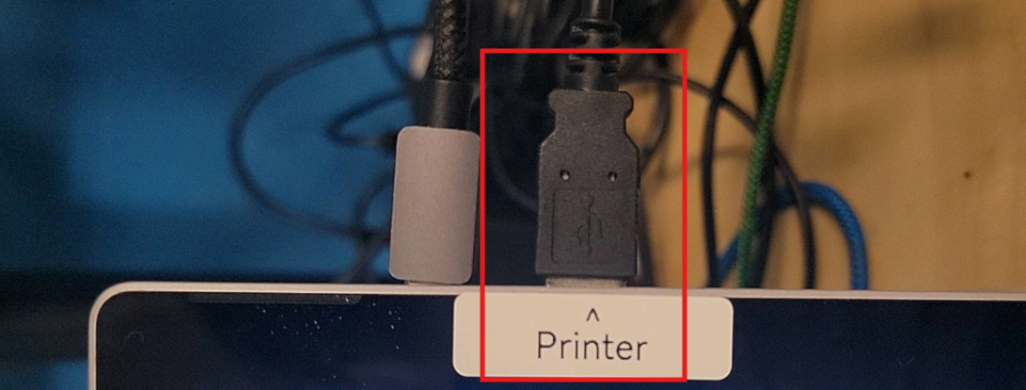
- Plug the green printer cable into the USB port marked Printer. Do not use a USB hub on this port, please plug the printer cable directly into the laptop.
- Follow this link to open our test print PDF in a new tab.
- Right click the ticket image and select print.
- Select the printer you would like to print to. You may need to click See More to find the right option. (If the printer dialogue does not appear, please close all Chrome windows, open this PDF from the desktop again, and retry.)
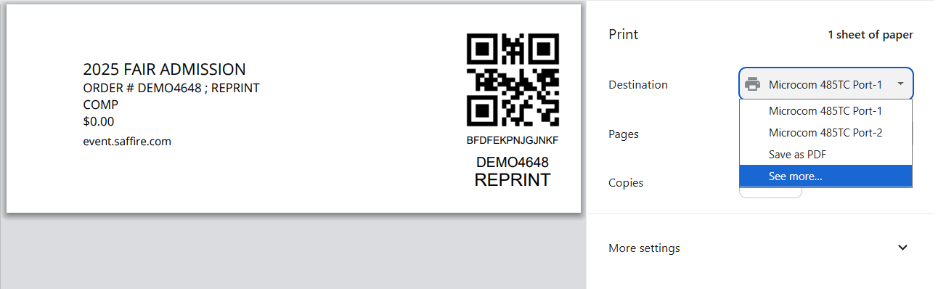
- When you click Print, the test print should be successful. If it is not, confirm that the correct printer is selected. If you need further assistance, check out our printers guide to find troubleshooting steps for the different printer models.
- Once the test print is successful, close this browser, and open the yellow box office browser from the link on your desktop.
- Run a test transaction in your box office to make sure it prints successfully.
Card Reader Setup
- Plug your card reader into any available USB port, taking care not to move your printer to another port after its setup is complete.
- Open the desktop Box Office shortcut (yellow chrome link) and log in.
- Select your location.
- Watch for a popup to appear in the top left corner requesing access to apps and services.
-
Click Allow
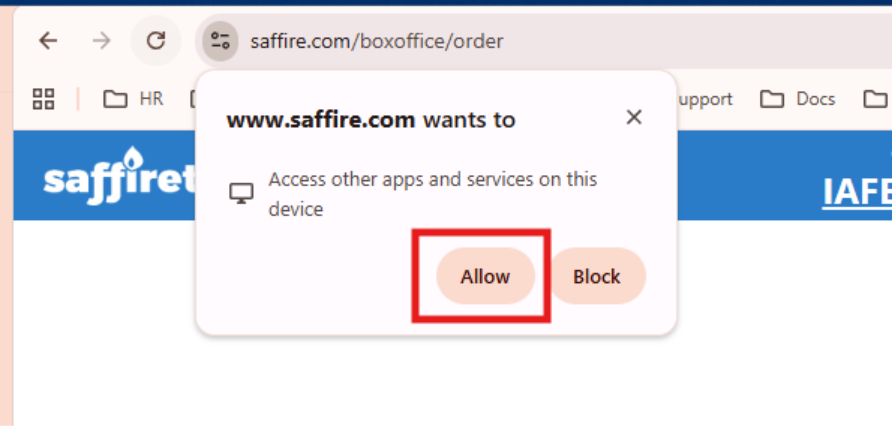
- The Magtek Devices dropdown should display one card reader available. Select this and continue.
- If you do not see your card reader available, and were not prompted by popup to Allow or Block, please follow this guide to allow Chrome to find your card reader.
- Run a test transaction to verify everything is working correctly.
If you need further assistance, check out our Credit Card Readers Guide to find troubleshooting steps for the different card reader models.
Find more general guidance and equipment returns information, visit our Equipment Setup Guide.
If you need assistance, you can reach Saffire Support at support@saffire.com, or by calling (512)-430-1123 during our normal business hours of 8am - 6pm Central Time. In case of after-hours emergencies, please email support@saffire.com with EMERGENCY in the subject line for the fastest response.