
Reports - Purchases
The Purchases Report is the dashboard for viewing orders, commonly referred to as transactions and/or receipts. You can search, filter, cancel, save and print receipts and tickets, print the entire report and export two different formats of this report. By default, this report will show you the last one month of sales, and if there are more than 50 orders, the report will paginate (i.e. Page 1 of 3)
Spark Location: Commerce > Reports > Purchases Report

- Select the Show Select Category dropdown to find orders based on a specific product category or product.
- You can also use the Filters dropdown to find more specific receipts. Active, Cancelled, All is an additional filter you can apply
- Select a Start and End date to find orders within a specific time period
- Use the search bar to find a specific order using:
- Order/Invoice #
- Customer email
- First or last name
- Last 4 digits of credit card
- Phone number
- Ticket details
- Transaction ID
- Transaction authorization code
-
Or select All to search across all fields
When looking up a transaction based on the last 4 digits of the credit card used, digital wallet payments (Apple/Google Pay) will use the digital last 4 found in the purchaser's digital wallet app rather than the true last 4 digits on the card.
-
Hover over an Order # to take action on that specific receipt
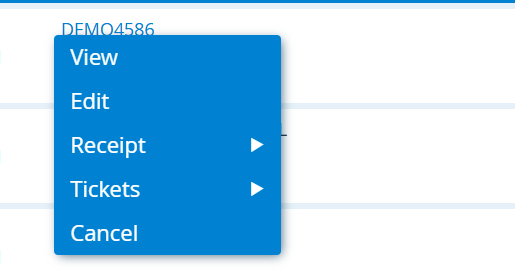
- View will open the order in the order viewer.
- Edit will open the order in the order manager.
- Receipt>View Receipt will give you a new window to view the receipt in, from there you can still Print, Save or Print SaffireTix Tickets
- Receipt>Print Receipt will open a new browser tab for you to print the page from
- Receipt>Email will allow the receipt to be emailed to the customer.
- Tickets>Print Tickets (only available for SaffireTix products) will open a new tab to the tickets where you can quickly save or print in your browser
- Usage will allow you to see any redemptions of tickets
- SaffireTix orders placed in the box office may also include a Notes field
- Cancel will cancel and refund an order. Your customer will receive confirmation of this refund.
- Depending on how long ago a purchase was made, your Virtual Merchant provider (maybe PayPal Pro, Authorize.net, etc.) will either say the order has been "refunded" or the purchase was pending but "not fulfilled."
- Some orders placed over 90 days ago may not be available for refund with Spark. You will need to login to your payment processor to complete a refund there.
Export Options
Below the search bar are links to export data for the selected date range. These will download an Excel file instantly:
- Print (selected orders)
- Export Marketing
- Export Fees
- Export Transactions
- Export Detail

Original Invoice callout on the Order Viewer
Spark Location: Commerce > Reports > Purchases > View
When an order was originated as an Invoice (edited and paid), you can view the this information in Order Viewer on the page labeled "Original Invoice".
This tile includes the following information:
- Date/Time of the original invoice creation
- Channel for which the Invoice was created
- Box Office - Web
- Box Office - Hold Conversations
- Seller Name
- Location
