
Chainway Scanner Reset
Chainways with a serial number beginning with an E do not work with triggers. When they are connected to a trigger, it disables the scanning capability altogether and will not work until there is a factory reset performed on the Chainways internal settings for the infrared scanner. These Chainways need to not be placed in triggers at all, or it will re-disable the scanning functionality until the same factory reset is performed.
If one of these devices is placed into a trigger, follow these steps to re-enable the scanner.
- After removing the Chainway from the trigger, exit Kiosk Mode (tap screen 5 times, then enter password T1xxxxxxxxxx).
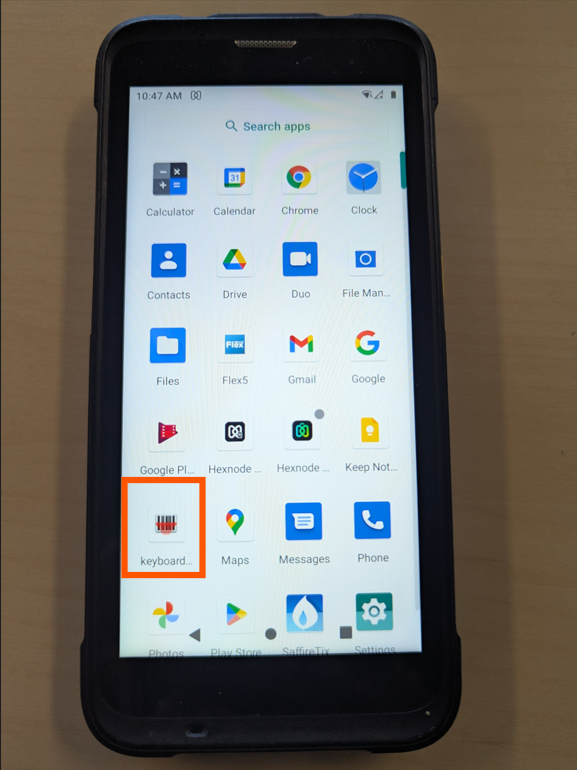
- Swipe up in main screen to get to apps.
-
Open the Keyboard Emulator app.
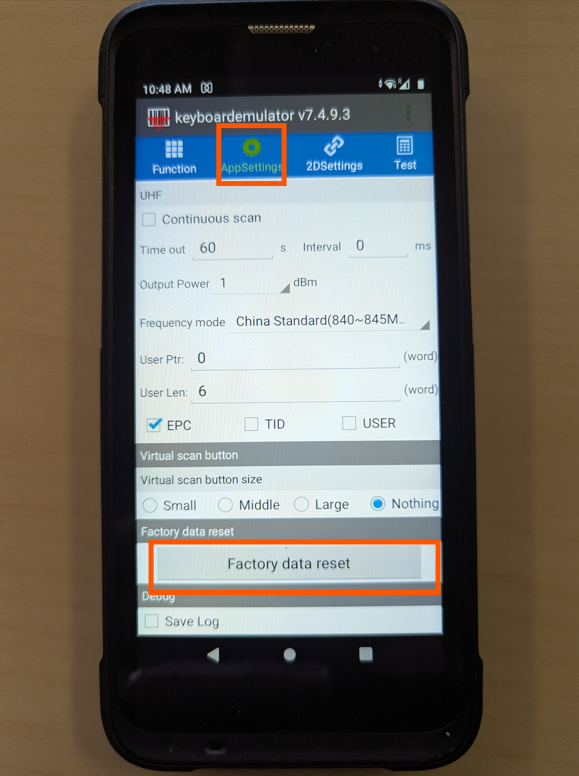
- Select the App Settings tab at the top
-
Go to the bottom of this screen and Factory Data Reset (just resets the scanner)
- While still on the App Settings screen, scroll back up and turn on Release Key Off Scan
-
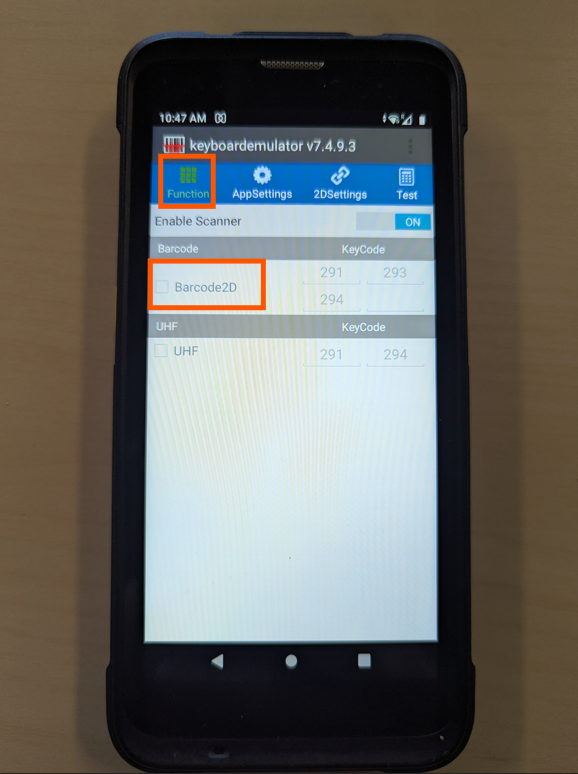
Select the Function tab, then check Barcode 2D then Enable Scanner
- Note that the factory reset will need to be redone after the Chainway is taken out of a trigger, so please leave it in the trigger and charge overnight with a USB-C cable.